

- This command is available in CGR and CATPart modes.
- This command only analyzes the status of Multicad data. If data are not Multicad ones, the status is not relevant.
- We strongly recommend that you save all documents before launching the command!
- Modified elements with a time stamp preceding that of the elements checked are not taken into account.
- You can repeat this control on different nodes of the same
specification tree, i.e. at different levels of the assembly.
The control will start at this level. - In CGR mode, as the assembly information are gathered at the root level of the assembly, any update information will refer to this root level whereas in CATPart mode the update information will refer to the actual level of the modification.

-
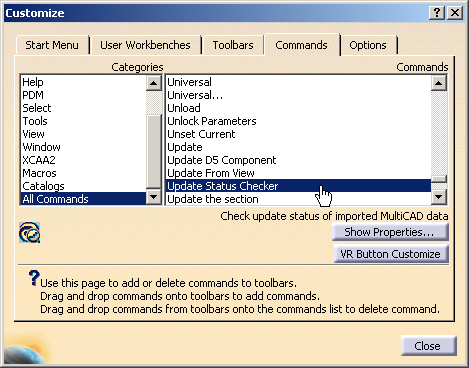
Open the Tools > Customize dialog box.
Go to the Commands tab and select the All Commands category. -
In the Commands list, select Update Status Checker and drag and drop the command into a toolbar.
-
Click Update Status Checker
 and pick a node in the specification tree.
The Update Status Checker checks the status of the components at this node level.
If the components are up to date, the light remains green.
The message Nothing to update is displayed in the dialog box.
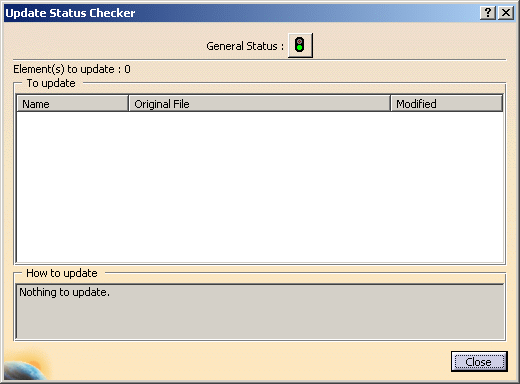
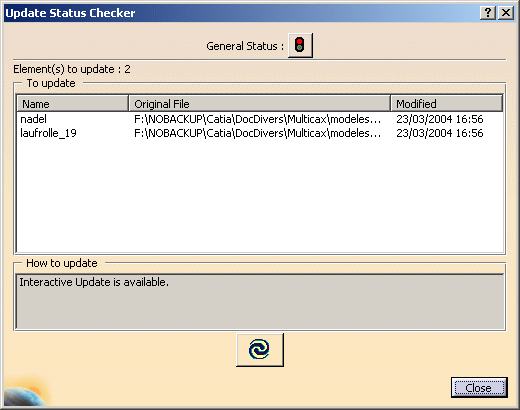
If original elements have been modified and the imported elements are not up to date,
the light turns red, the elements to update are listed in the dialog box
(with their name, location of the original file and date of modification).
A message explains how to update the elements. -
Select a line in the To update list, the corresponding element is highlighted in the specification tree.
-
Click
 . All the elements listed in
the To update field are updated.
. All the elements listed in
the To update field are updated. -
Click Close to exit the action.
