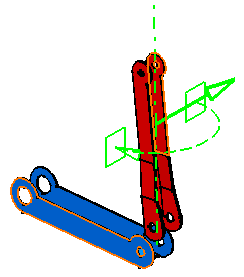
- The Snap makes only simple snaps, see the
Assembly Snaps reference to know more
about simple snaps capabilities.
Using this command is a convenient way to translate or rotate components. - The Snap is able to work in visualization mode, which means the positioned component and the positioning parts are no longer need to be switched into design mode. However, in order to select lineic elements, you must be working in Design mode.
- For DMU Navigator, this task is P1-only.
- The element to be snapped must belong to the active component.

- Make sure you work in Design mode (use Edit > Representations > Design Mode)


-
Select the first face.
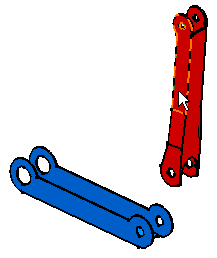
The element selected first is always the element that moves.
-
Select the second face.
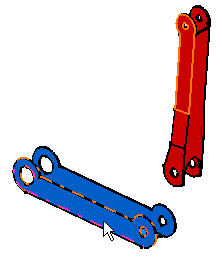
The first face is projected onto the plane defined by the second face.
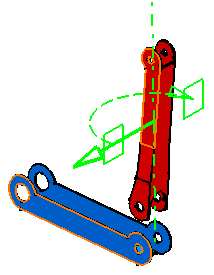
A green arrow is displayed on the first face you selected.
-
Click this arrow to reverse the orientation of the face.