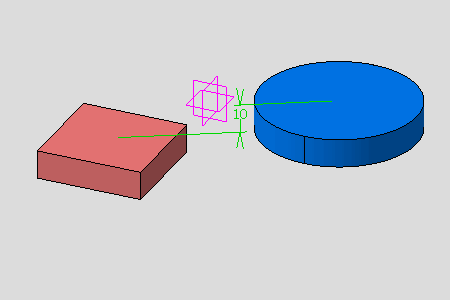
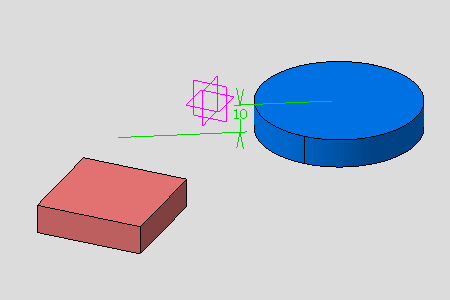
- Rename the constraint.
- Change the referenced geometries.
- Modify its options.


-
Double-click the required constraint.
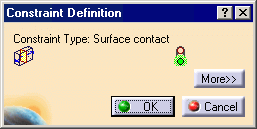
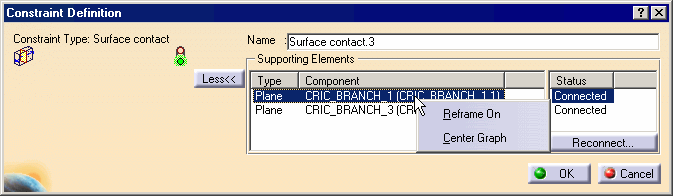
The Constraint Definition dialog box appears.
-
Click the More>> button to expand the dialog box.
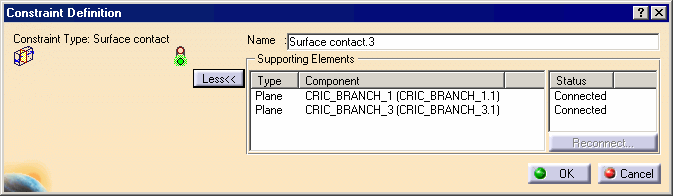
The traffic lights displays the constraint status:
-
 verified.
 -
 impossible.
 -
 not updated.
 -
 broken.
Two contextual commands improving display are available in the Supporting Elements field:
-
Reframe on views the constraint of the selected component at the center of the geometry window.
-
Center Graph zooms in the selected component in the specification tree.
Constraints and Object in Work
In this case, the application cannot highlighted the geometry or the constraint seems to be wrong.
This can happen for Sheet Metal Design features or when you add a transformation feature in Part Design context for example after the constraint's creation.