 |
Fixing a component
means preventing this component from moving from its parents during the
update operation. There are two ways of fixing a component:
- Fix in space: by fixing its position according to the
geometrical origin of the assembly, which means setting an absolute
position.
- Fix: by fixing its position according to other
components, which means setting a relative position.
This scenario first shows you how to fix a component in space, then how
to fix it. |
 |
You can now fix a
component by specifying the coordinates. |
 |
Before fixing the
desired component, make sure it belongs to a component defined as active.
Open an assembly. |
 |
1. |
Click the Fix component icon:

|
|
|
Fix in Space
|
|
|
This command is also available from the Insert menu. You can edit the coordinates and fix the absolute
position of a component with the
Fix in space
option.
|
| |
|
By default, the Fix command fixes
components in space. |
|
2. |
Select the component to be
fixed, that is the light blue component. |
|
|
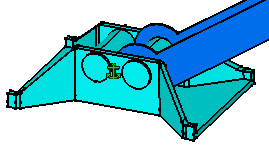
The constraint is
created. A green anchor is displayed in the geometry area to indicate that
this constraint has been defined. |
|
|
 |
|
|
A lock symbol preceding the anchor is displayed in the
specification tree too: |
| |
|
 |
|
|
|
Graphic symbols used
for constraints can be customized. For more information, refer to
Customizing Constraint Appearance. |
|
3. |
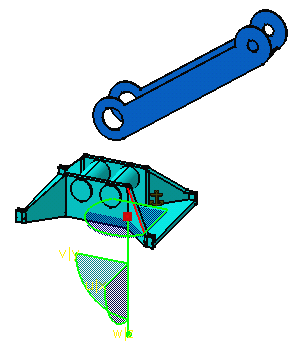
Move the fixed
component using the compass. |
|
|
 |
|
4. |
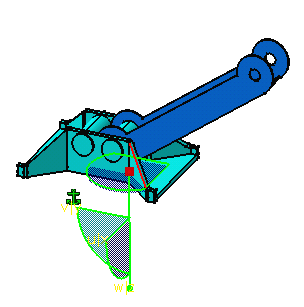
Update the assembly
to see which component is moved: the fixed component returns to its
previous location: |
|
|
 |
|
5. |
Enter the coordinate and fix the absolute position using the
Fix in space option. |
| |
|
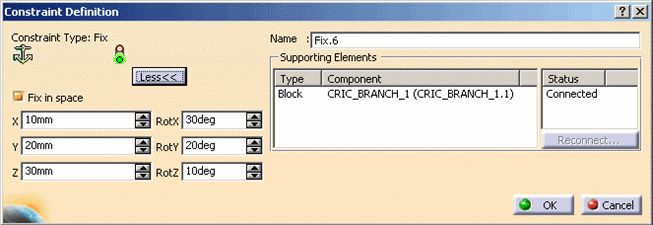
By default, the Fix in space option is selected.
|
| |
Editing a constraint from the Properties Dialog
box
|
| |
6. |
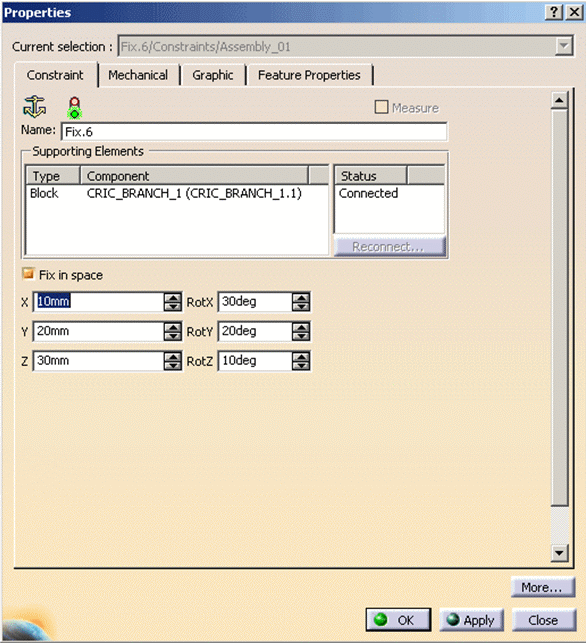
Edit the position
of a component by editing the properties of the
Fix in space
constraint using following dialog box:
|
| |
7. |
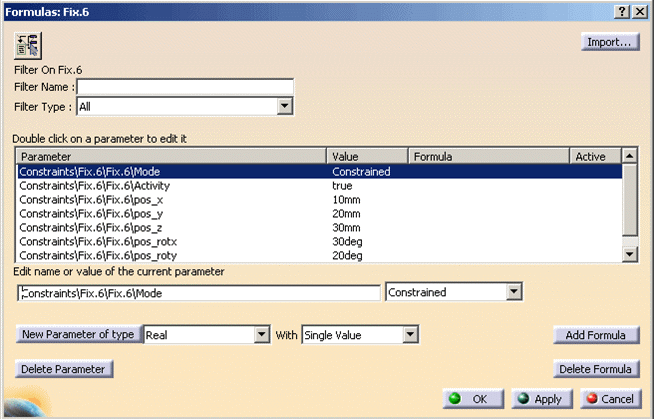
Clicking on the
f(x) displays the six parameters.
You cannot change the parameters but can modify their values.
|
| |
Fix Constraint
|
|
8. |
Double-click the fix
constraint you have just created to edit. |
|
9. |
In the dialog box
that appears, click More to expand the dialog box. |
|
10.
|
Uncheck the Fix in
space option to the left of the
dialog box. The lock symbol is no longer
displayed in the specification tree, meaning that the component is
positioned according to the other components only. |
|
11. |
Move the fixed
component using the compass. |
|
12. |
Click OK to confirm. |
|
13. |
Update the assembly: now the
component remains at its location. Conversely, the dark blue component is
moved to the fixed component. |
| |
|
