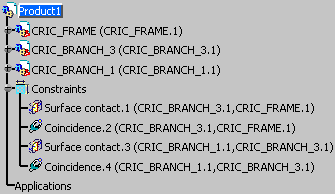
- Updating an assembly means updating all elements affected by this functionality, see Assembly Update reference information.
- You can update automatically or not your assembly, see Assembly Design-Update option.
- You can define the update propagation in the assembly, see Assembly Design-Update propagation option.
- You can compute the update status when you open an assembly document or insert an assembly component, see Assembly Design-Compute exact update status at open option.

- In Design Mode, the update status can be
determined, the Update All icon
 or the Updated icon
 is
displayed.
is
displayed. - In Visualization Mode: the update status cannot
be determined, the Status Unknown icon
 is displayed. When you click this icon, the minimal data needed to
determine the update status are loaded:
is displayed. When you click this icon, the minimal data needed to
determine the update status are loaded:- If the minimal data loaded to determine the status allow the
application to perform an update and if the Update option is
Automatic, then the assembly is updated, the Updated
icon
is displayed.
- If the status is not up to date, the Update All icon
is displayed. When you click this icon, the needed data to perform
the update are loaded, then the assembly is updated, the Updated
icon
is displayed.
- If the minimal data loaded to determine the status allow the
application to perform an update and if the Update option is
Automatic, then the assembly is updated, the Updated
icon

In the Infrastructure category, select the Product Structure sub-category then the Cache Management tab and check the option Work with the cache system. Close and re-open the application if needed.
 is displayed because there is not enough information to determine the
update status of assembly's elements: the constraints reference assembly
components which are in Visualization Mode.
is displayed because there is not enough information to determine the
update status of assembly's elements: the constraints reference assembly
components which are in Visualization Mode.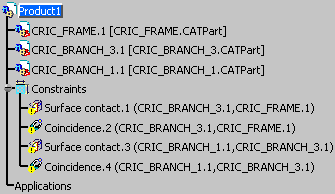

When you click this icon, the application loads the minimal data to determine the update status. This is mean that the constraints' related components may be switched to Design Mode, warning is displayed in this case.
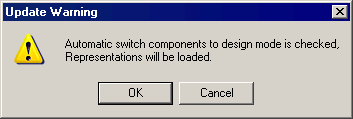
The Update Warning dialog box appears, you can:
-
Click OK to determine the update status.
-
Click Cancel to keep the unknown status.
-
Click OK, a progress bar appears during the data loading.
The update status has been determined: the
assembly is up to date and the Updated icon is displayed:
The components have been loaded and constraints have been resolved.