|
This procedure describes how to display
objects that are assigned to processes Cross-Highlight Assigned Objects
 on the basis of the relations.
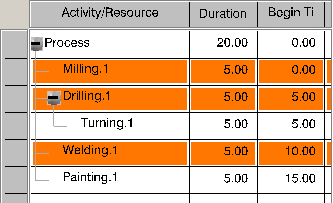
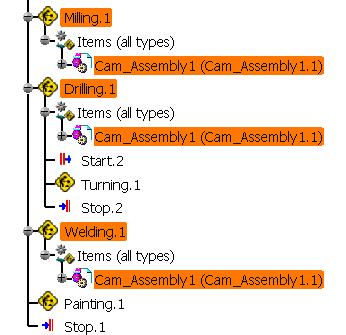
When an object is highlighted due to cross-highlighting, not only is the selected object highlighted, but that object is highlighted wherever it appears in the PPR tree and in the graphic view. In the example below, the user selected Cam_Assembly1 under Milling1; consequently, Cam_Assembly1 is highlighted wherever it appears within the tree.
|
|||||||||||||
You can use Cross-Highlight Assigned Objects
for the following objects:
|
||||||||||||||
| Only relations that are permitted between
objects can be used for Cross-Highlight Assigned Objects
. The permitted relations are displayed under the
cross-highlight options. Relations used for cross-highlighting are saved
under the options. |
||||||||||||||
Cross-highlighting appears in the following views:
Objects can be selected within all these views for cross-highlighting. |
||||||||||||||
 |
You cannot perform cross-highlighting in the MBOM viewer. | |||||||||||||
Cross-Highlighting Overview |
||||||||||||||
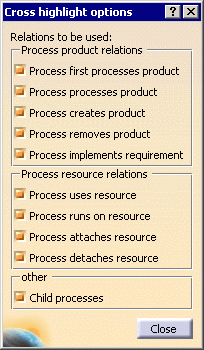
| Click Cross-Highlight Assigned Objects
,
and use the Cross-Highlight Options dialog box. Select the relations that should be taken into consideration for
the cross-highlighting in the dialog. If the objects have already been
selected before the function is started, the selected objects and the
objects assigned via the selected relations are highlighted in color. The colored highlights of the cross-highlight are always displayed in the PPR tree and in an assigned graphic. If you have opened other views such as the Gantt chart, the colored highlights appear in those views. If you select another object, the previous colored highlights are removed and only the selected object and the objects assigned to this object via the selected relations are displayed. This procedure can be repeated an unlimited number of times before function is closed. Cross-highlighting is executed only for the objects that are selected. If further structure levels are assigned to selected objects, such as processes or products, these objects are not taken into consideration. The children of a selected parent node are displayed if you select them or you select the Child processes checkbox. |
||||||||||||||
 |
Cross-Highlight Assigned Objects |
|||||||||||||
|
||||||||||||||
PPR Tree/3D Viewer Display |
||||||||||||||
| The objects that are linked with these
relations are displayed in the PPR tree for the selected relations in the
Cross-Highlight Options dialog box and the selected objects in
the PPR tree.
In the example, only the relation Process Processes Product is selected in the Cross-Highlight Options dialog box, and the process MILLING 1 is selected in the PPR tree. All objects that are assigned to the process via the relation are displayed after the command is started. |
||||||||||||||
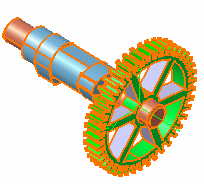
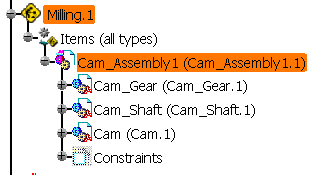 The 3D view is also highlighted.
|
||||||||||||||
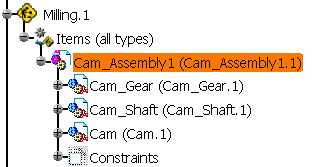
| In this example, the user selected
Cam_Assembly1.
After the user clicked Cross-Highlight Assigned Objects
, all processes that are linked via the
relation Process Processes Product with the product are
displayed: in the example, the process is MILLING 1. |
||||||||||||||
 |
||||||||||||||
Gantt Chart Display |
||||||||||||||
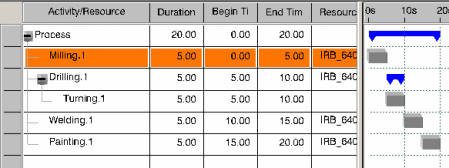
The display in the Gantt chart can be
executed for individually selected objects as well as for several
objects.
|
||||||||||||||
PERT Chart Display |
||||||||||||||
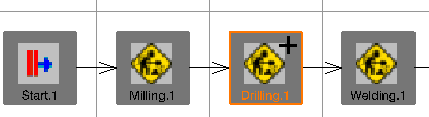
| The display in the PERT chart can be
executed for individually selected objects as well as for several
objects. The PERT chart must be open before the function is started.
You can select the objects for cross-highlighting in the PERT chart or in
the PPR tree. Linked objects are displayed in accordance with how you
made the selection. If, for example, you have selected a process in the
PERT chart and afterward you click Cross-Highlight Assigned Objects
|
||||||||||||||
 |
||||||||||||||
Part Selection Display |
||||||||||||||
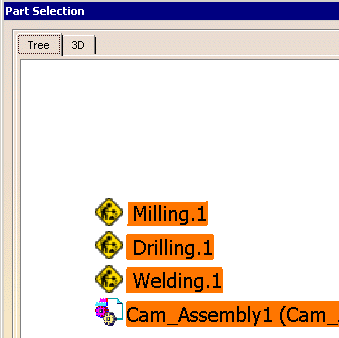
You can click Part Selection
 before or after you click Cross-Highlight Assigned Objects
.
The following caveats apply:
before or after you click Cross-Highlight Assigned Objects
.
The following caveats apply:
|
||||||||||||||
 |
||||||||||||||
Display of States or Positions |
||||||||||||||
| If you select a position or a state, and then click Cross-Highlight Assigned Objects
,
the position or state is no longer highlighted, although its parent node
is. In effect, the parent node is the input (i.e., object selected) for
cross-highlighting. In addition, any objects (e.g., processes) that
should be cross-highlighted when the parent node is highlighted also
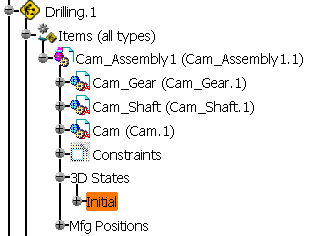
become highlighted. In the example below, the state Initial was selected before cross-highlighting. The parent node of Initial is Cam_Assembly1. |
||||||||||||||
 |
||||||||||||||
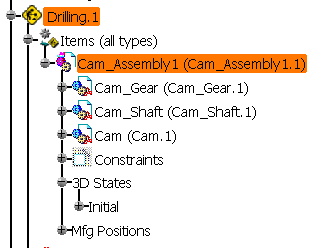
| Once cross-highlighting for Initial was selected, its parent node and the process linked to it (i.e., Drilling) became highlighted. | ||||||||||||||
 |
||||||||||||||
Display FTA Objects |
||||||||||||||
| FTA objects can be displayed only if they
are assigned to a process by the relation Process implements
requirement, and this relation must be selected in the Cross-Highlight Options
dialog box. Cross-highlighting occurs whether the FTA object is assigned to a process with the relation Process implements requirement partially or the relation Process implements requirement completely. |
||||||||||||||
When You Select a Process |
||||||||||||||
|
||||||||||||||
When You Select a Geometric Element |
||||||||||||||
| If the geometric element is selected, the processes linked to the FTA object to which the geometric element belongs are highlighted. | ||||||||||||||
When You Select a FTA Object |
||||||||||||||
| If a FTA object is selected, all processes that are linked to the FTA object are highlighted. | ||||||||||||||
If You Activate a 3D Annotation Query |
||||||||||||||
| If a geometric element is selected, then its FTA object is, in effect, used as the input (i.e., object selected) for cross-highlighting. | ||||||||||||||
 .
.