
Process Constraint Verification supports the display of products and resources in the 3D context for processes that are either directly linked to the selected process or are linked via a priority relation; during this you can execute other functions.
You can use these new functions in the 3D context for processes
- In order to display and hide products and resources.
- For products that are not linked to any processes and are displayed either in the object color or in black.

Opening the Dialog Process Constraint Verification
-
On the DPM Planner Tools toolbar, click Process Constraint Verification
 .
.
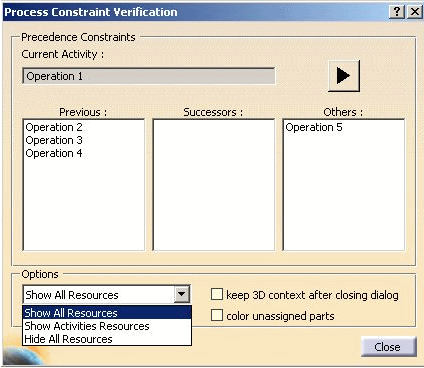
The Process Constraint Verification dialog box appears.
-
Select a process to open.
-
Options for displaying resources: Show All Resources is set in the standard configuration.
-
Options for displaying products: Both functions are deactivated in the standard configuration.
-
Using Options
Setting options for the display in the 3D Context:
The set options take effect on the display of the 3D context of products and resources only after the dialog is closed. While you make the settings in the dialog, the current settings of the options are shown in the 3D context.

Notes
The field keep 3D context after closing dialog must be activated whenever you display linked products (directly or indirectly) and resources in the 3D context. If this field is not activated, products are displayed in the object color and all of the resources are shown.
The field color unassigment parts must be activated whenever you display products to which no processes are assigned in the 3D context.
Options - Display Resources
There are three options available to you for displaying resources:
- Show All Resources
- Show Activities Resources
- Hide All Resources
Show All Resources
If you select this option, all resources of the current view are displayed.
Show Activities Resources
If you select this option, only the resources that are linked to the selected process with the following relations are displayed:
- Process uses resource
- Process runs resource
- Process attaches resource
- Process detaches resource
Hide All Resources
If you select this option all resources of the current view are hidden, regardless of whether they are linked to a process or are not assigned to a process.
Options - Displaying Products
- If the option keep 3D context after closing dialog is not activated, all products and resources are displayed in the object color. The settings in the dialog do not affect the display in the 3D context.
- If the option keep 3D context after closing dialog is activated, all products and resources are displayed in the 3D context according to the settings made.
- If the option color unassignment parts is not activated, all products and resources are displayed in the 3D context according to the settings made.
- If the option color unassigment parts is activated, all products which are not linked to any processes are shown in black.
Notes
In order to reset the display in the 3D context
execute the Process Constraint Verification on the rootprocess (in the
example, the New Process view). After the dialog is closed, all products
and resources are again shown in the same state as before the execution
of the Process Constraint Verification.
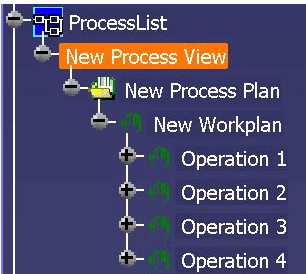
Examples for Display of 3D Context with Process Constraint Verification
Example 1
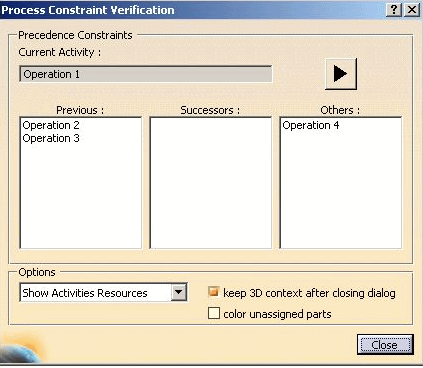
In this example, the process Operation 1 is selected. Operation 2 and Operation 3 are processes previous (priority relation - previous) to operation 1. Operation 4 has no priority relation. In addition only the resources that are directly linked to the selected process are displayed in this example.
- Keep 3D Context after closing dialog is activated.
- Color unassigment part is deactivated.
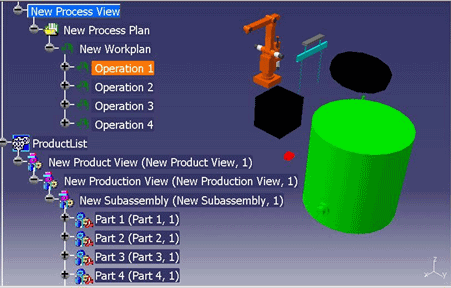
The display in the 3D context looks like this after the dialog is closed:
- Products that are linked directly to Operation1 are displayed in the color green.
- Products that in the priority relation Previous to the selected Operation1 are displayed in black.
- Products that have no priority relation to Operation1 (Status Previous or Successors) are displayed in red.
Resource to the selected process.
- Products not assigned to any processes are displayed in the object color in the example.
- Products with the status previous are displayed in black.
- Products that do not have the status previous are displayed in red.
- Products that are directly linked to the selected process are displayed in green.
Example 2
In this example, the process Operation 3 is selected. Operation 2 and Operation 1 have no priority relation to Operation 3 in the status Previous. Operation 4 has no priority relation. In addition, no resources are shown in this example.
- Keep 3D Context after closing dialog is activated.
- Color unassigment part is activated.
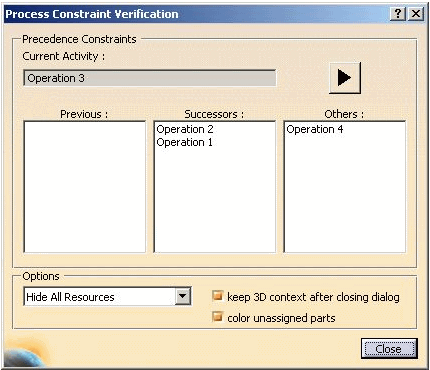
The display in the 3D context looks like this after the dialog is closed:
- Products that are directly linked to the selected process are displayed in green.
- Products that have no priority relation Previous to the selected Operation3 are not displayed: Both processes Operation1 and Operation2 have only the status Successor to the selected Operation3, and they are therefore not displayed.
- Products which have no priority relation to Operation3 (status Previous or Successor) are displayed in red.
- Products that are not assigned to any processes are displayed in black, since the option Color assigned parts is activated.
- In this example all resources are hidden since
the option Hide All Resources is activated.
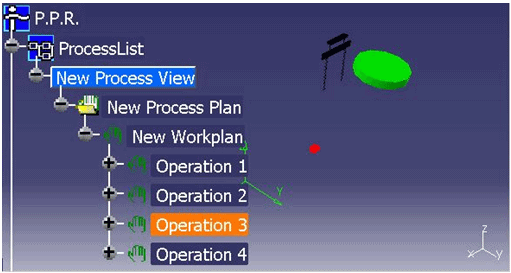
Products which have not been assigned to any processes are displayed in black in the example.
