
In an application such as Powertrain, a manufacturing engineer sets precedents and uses V5 to link activities. V5 enables you to create precedence constraints within the software so that there are no invalid links between activities.
For example, suppose that a Finish operation should never occur before the Drill operation. In this case, a sequence of Drill-Inspect-Clean-Finish will be accepted by the system, but a sequence of Inspect-Finish-Clean-Drill will not. This behavior can be defined using the steps detailed below.
Create Precedence Constraint
 is found in the Activity Management toolbar. The command can be executed
in the the Gantt Chart, Precedent Viewer, AST Viewer and normal 3D
Viewer only. The command is disabled for all the viewers where
precedence relations cannot be shown, such as the PERT and Product Flow
Viewer.
is found in the Activity Management toolbar. The command can be executed
in the the Gantt Chart, Precedent Viewer, AST Viewer and normal 3D
Viewer only. The command is disabled for all the viewers where
precedence relations cannot be shown, such as the PERT and Product Flow
Viewer.

General Notes
-
Any activity in DPM can have one or more activity set as its precedents.
-
Precedents can be (an usually are) set before the activities are linked.
-
An activity from an assembly process type, you can not create a precedence constraint between assembly process activity. An error message box appears with message Assembly Operation Selected. This Activity cannot be selected for precedence constraint creation”, whenever user tries to create precedence constraint on assembly operation.

Creating Precedence Constraints
-
Select the activity that you want to serve as the precedent in the PPR tree (in the case illustrated, Act1_Level1.1).
-
Click Create Precedence Constraint
and then click the activity that requires the precedent constraint
(Act3_Level1.1). -
Right-click on the activity and select Properties to see or modify the constraints.
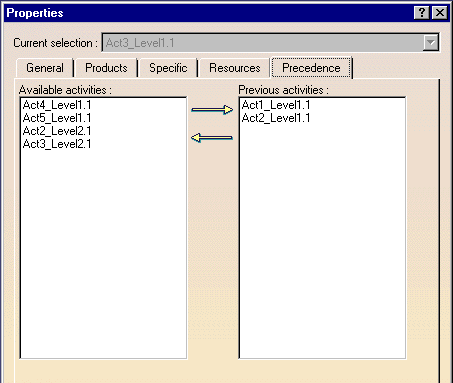
All of the available activities are displayed in the left column, and activities that are required to precede the current activity are displayed in the right column. The Available Activities and Preceding Activities lists are only a collection of activities and do not have any implied sequence between them. -
To modify the constraint, select the activity to be moved (e.g., from the list of precedence constraining activities to the list of activities that are not part of the precedence constraints).
-
Click the arrow between the two columns corresponding to the direction in which the activity should be moved and click OK.
