
The conventional method for assigning a product to a process (described in the previous section) utilizes either the Assign an item command or the drag-and-drop method, and results in an assigned product having a "Process processes product" relationship with the process that it is assigned to by default.
In order to support the same relationships that are supported by the Manufacturing Hub, DPM Process and Resource Definition now also provides the "Process first processes product" relationship to indicate that a product is being consumed by a process for the first time.

Assigning a Product as Process First Processes Product
-
To assign a product to a process as "process first processes product," click First Assign Item
 located in the Activity Management toolbar.
 -
With the First assign item activated, select the product to be assigned to a process:
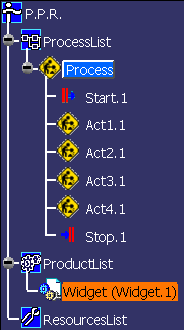
-
After the product has been selected, click on the process to assign it to:
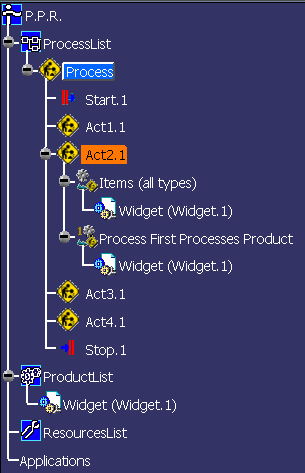
If the Item folders (per relation type) option is enabled in the Tree tab of the Tools> Options page, Items assigned to a process as "process first processes product" will appear in a folder titled "Process First Processes Product" under the process in the PPR tree, as shown in the above figure.
All items assigned to a given process will also be listed in the "Items (all types)" folder, as shown above.
