
Using the Assign Output Item command, you can create a Process Creates Product relationship that represents the output from a process. An output product can then be fed to another process using the Feed by Another Process command.
The following procedure describes:
- Assigning an output product to an activity
-
Unassigning an output product from an activity

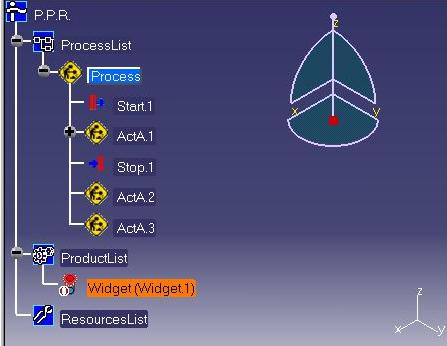
- The product to be designated as an output product must be present in the ProductList of the PPR tree.
-
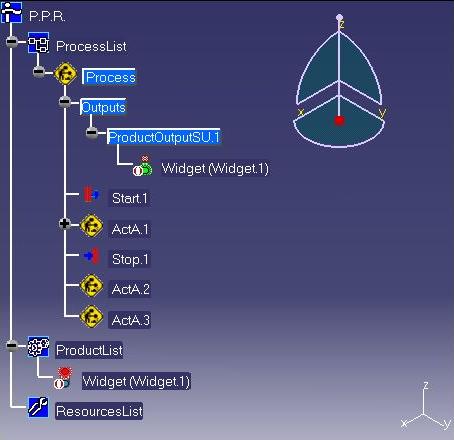
To see the output product in the PPR tree, select the Output Product Folder check box on the Tree tab of the Tools > Options > Digital Processes for Manufacturing.

Assign an Output Product to an Activity
-
Select the product to be assigned as the output of a process:
-
Click Assign output item
 .
.
-
Select the activity to assign the product to as the output product. After the activity is selected, an Outputs folder appears under the selected activity. This folder contains a list of all outputs specified for the activity.
In the example shown, the Widget item has been assigned to the top-level process as an output product:
Unassign an Output Product from an Activity
-
Click Unassign Output Item
 .
. -
Select the activity on the PPR tree from which to remove an output product.
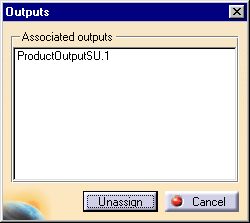
The Outputs dialog box lists all output products currently assigned to the selected activity.
-
Select the desired product to remove and click the Unassign button.
The item is removed from the Outputs folder of the activity. If there are no other outputs assigned to the activity, the Outputs folder is no longer displayed.
