Using Cycle Constraints in the Resource Gantt Chart
 |
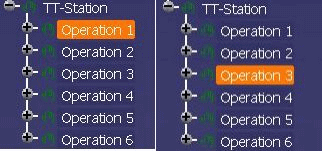
Cycle constraints are used to show the priority relation between defined cycle times amongst processes of the individual cycle times in the Resource Gantt Chart. The standard cycle time is set to 25 seconds. Defined cycle constraints relations can be saved on a long-term basis only if the project is created in the Process Engineer (PE) and then is loaded in accordance with V5 and then saved again after the definition of the cycle constraints. Saving the cycle constraints is absolutely necessary in order for the defined cycle constraints relations to be accessible on a long-term basis as well as after the repeated loading of the project from the Process Engineer. If you do not save at this point, the defined cycle constraints relations are lost. The structures and relations between resources and processes should generally be available in the project. If the Process Engineer is configured accordingly, the defined cycle constraints relations can be displayed for processes after the project is saved under the attribute must precede process in previous cycle. In order to create a cycle constraints relation between processes you can use the following views for selecting processes in V5:
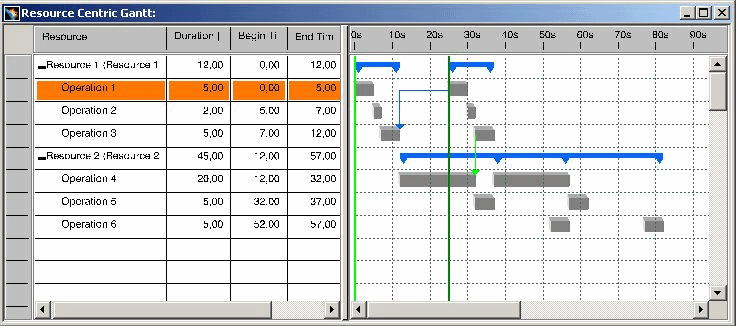
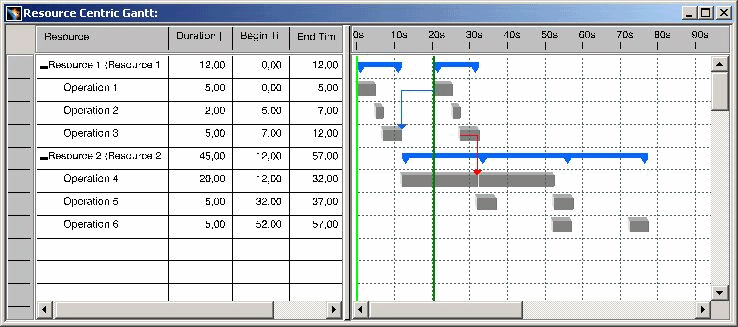
The defined cycle constraints relations are displayed with arrows in the Resource Gantt Chart: The cycle time can be edited in the Resource Gantt Chart. |
|
|
Creating constraints relations |
|
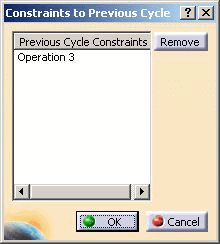
You can use the Cycle constraints to define the priority relation of the processes between the cycle times. You thus set which process in the first cycle must be terminated before a process to which the priority relation Previous Cycle Constraints exists can begin in the second cycle. The example shows how to define the cycle constraints for two processes: The process Operation3 has the priority relation Previous Cycle Constraint to Operation1, i.e.: Operation1 can start in the second cycle only if Operation3 was terminated in the first cycle.
 Constraints
between Cycles in the Activity Management toolbar. Constraints
between Cycles in the Activity Management toolbar.
|
|
Displaying and editing cycle constraints in the Resource Gantt Chart |
|
Open the Resource Gantt Chart after you have defined the cycle constraints relation.
 in the Data view toolbar. in the Data view toolbar.The following examples will familiarize you with the procedure: In the examples six processes (Operation1 to Operation6) are linked to two resources (Resource1 and Resource2). Operations one to three are linked to Resource1, and Operations four to six are linked to Resource2. Furthermore, the following cycle constraints relations are defined between processes: The defined priority relations are marked by the blue arrows in the Resource Gantt Chart. ConclusionThe result of these defined priority relations shown in the Resource Gantt Chart is that the process Operation3 must be terminated in the first cycle before the process Operation1 can start in the next cycle. Furthermore, process Operation3 can start in the second cycle if process Operation4 has been terminated in the first cycle.
In the example the cycle time was changed from 25 to 20 seconds, which led to all of the start dates of the process in the second cycle to be changed. By changing the cycle time the cycle constraints relation between Operation3 (second cycle) and Operation4 (first cycle) is violated.
|
|
LimitationCycle constraints relations between processes are not supported by the Resource Gantt Chart. A violation of the cycle constraints relation may occur, for example, whenever the cycle time or process time is changed. |