
This procedure explains how to create links between activities in a process. The topics include:

 to view the PERT chart.
Each box displayed by the PERT chart represents an activity.

Create Simple Links
-
Click Link Activities
 .
.The icon becomes highlighted (orange). -
Select the first activity (Start, in the example below) and then select the second one (Open_Clam, in the example below).
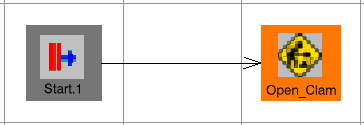
-
Click on each activity you wish to link to the previously selected activity until you have finished linking.
-
Click Link Activities
again.The icon is no longer highlighted. -
Move the mouse over a link.
A tooltip appears describing the link (e.g., in the case above, Links: Start.1 To Open_Clamp).
Create Forked Links
 |
A forked link enables you to link a single activity to two simultaneous activities that follow it. |
-
Click Link Activities
. -
Click on an activity that is already linked to another activity (e.g., Op_Clam, below, is already linked to Rt_Rbt).
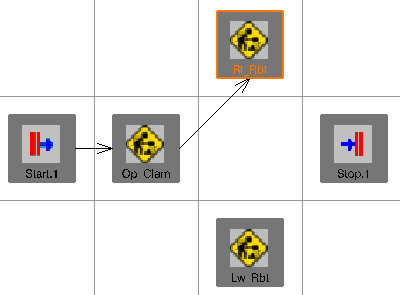
-
Click on an activity that is to occur simultaneously with the activity to which the first activity is linked (e.g., Lw_Rbt).
The Ambiguity linking activities dialog box appears. 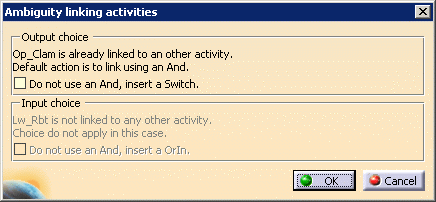
-
Select the Do not use an And, insert a Switch check box, and click OK.
A switch activity appears, and is linked to the two simultaneous activities. 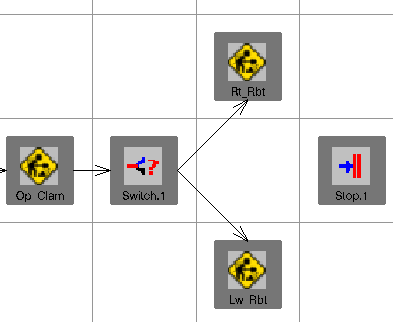
If you accept the default, you create an AndOut logical activity. 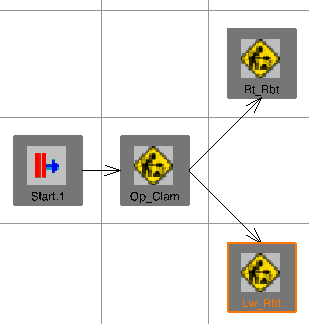
Note: If you use a switch activity, when you mouse over a control flow (i.e., the arrow in the PERT chart), you see a tooltip that lists both the link and the output number (e.g., Links: Switch.1 To Rt_Rbt. Output Number: 2)
Join Forked Activities
|
|
When you join forked activities, you link two simultaneous activities to a single activity. |
-
Click Link Activities
. -
Click on one of the simultaneous activities and the subsequent activity then click Link Activities
(to break the linking sequence). -
Click Link Activities
,
the second simultaneous activity, and the subsequent activity.The Ambiguity linking activities dialog box appears; the Input choice area is available. 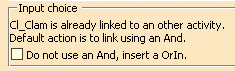
-
Select the Do not use an And, insert a OrIn check box, and click OK.
The OrIn activity appears. 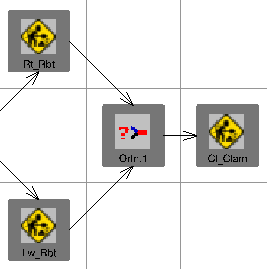
- Link Activities
, when
clicked, links the first and second selections together.
Subsequent selections are automatically linked to the previous selection.
- To deactivate Link Activities
,
click it.
-
Activities that do not have the same parent process cannot be linked.
Automatically Link Child Activities
|
|
Child activities can be linked automatically using Link
Child Activities
 . This command is used with the parent
activity to determine how the children should be linked. The examples shown
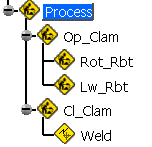
below are based on the following PPR tree: . This command is used with the parent
activity to determine how the children should be linked. The examples shown
below are based on the following PPR tree: |
 |
-
Select the parent activity whose children you want to link.
-
Click Link Child Activities
.The Link Selected Activities dialog box appears. 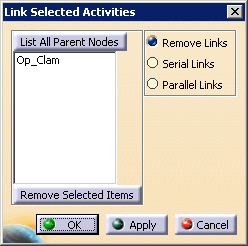
-
Select Serial Links and click Apply.
The links of the child activities of Op_Clam are linked sequentially, based on the order in which they appear in the PPR tree. 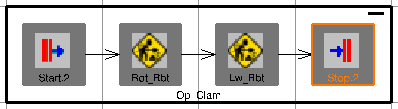
-
Select Remove Links and click Apply.
The links of the child activities of Op_Clam are removed. 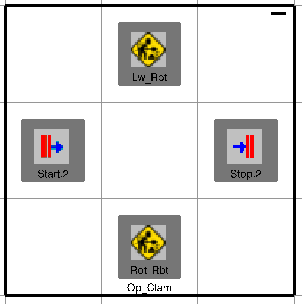
-
Select Parallel Links and click OK.
The links of the child activities of Op_Clam are linked so that they are parallel. 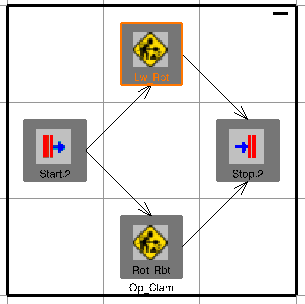
About Link Activities and Link Child Activities
When clicked, the List All Parent Nodes displays all of the activities in the PPR tree that have children.
Remove Selected Items deletes any selected parent activities from the list that have been selected. Multiple selections may be made by holding down the Ctrl key while selecting more than one activity.
Instead of clicking the Remove selected Items button, double-clicking the activity in the parent list also removes the activity from the list.
Link Activities
and Link
Child Activities
are available in the PERT, Product Flow and normal 3D Viewer only. The
commands are disabled for all the viewers where control flows cannot be
viewed, such as the Precedent Viewer and AST Editor.
Link
Child Activities
removes existing links and generates new links according to the
specified options. Link Activities
shows a error message if a link already exists.
All objects populated in the list are used as input for the executed command (e.g., serial link, parallel link, remove link), regardless of whether the nodes in the list are selected or not.
