 |
This procedure enables you to
reverse the process being
simulated.
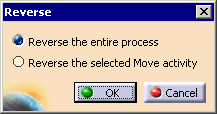
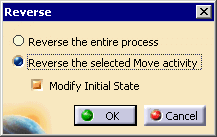
Reversing the process means that the order of all activities are reversed and that the move and visibility actions are reversed. If, in the initial state, the visibility action shows a part, it hides it in reverse. If, in the initial state, a part moves from starts on the left and moves right, in reverse, it starts right and moves left. |
||||||
| The initial state of a move activity may or may not be altered, depending on the selections made. | |||||||
 |
|
||||||
 |
Reverse the Process  toggles between the initial state and the reversed state. To
restore the process to its initial state, click Reverse the Process
again.
toggles between the initial state and the reversed state. To
restore the process to its initial state, click Reverse the Process
again. |
||||||
If you saved the initial state of the
process, you can also use Restore Initial State  . .
|
 to see the process run in reverse.