 |
This procedure enables you to alter the
order in which your products or resources are listed in the ProductList
or ResourceList in the PPR tree. By default, your products and
resources are listed in the PPR tree according to the order in which you
first added them to the PPR. This procedure describes how to alter
the order. In addition, you can replace the initial order with
alphanumeric ordering by select Tools > Options > Digital Process
for Manufacturing > Tree, and selecting the Alphanumeric
Order option. |
 |
-
On the Activity Management toolbar, click
ProductList/ResourceList Reorder
 . .
-
Click the ProductList or ResourceList node.
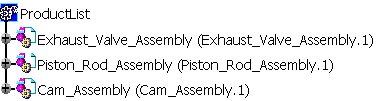 |
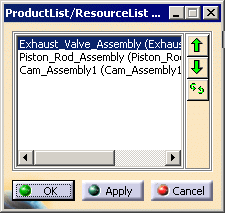
| The ProductList/ResourceList Reorder dialog box appears |
 |
-
Move the product or products within the box.
|
During a single session, you can move as many items as you want,
although you can only move one item at a time. You can move an
item down within the list using the down arrow; up using the up
arrow. Alternatively, you can select an item, click the paired
arrows, and then click in the place you want your item to appear
in the list. |
|
Clicking Apply enables you to see your changes in the
context of the list on the PPR tree. Clicking OK
after clicking Apply alters the list per your
specification and closes the dialog box; clicking Cancel
at anytime closes the dialog box without the requested changes
remaining in effect in the PPR tree. |
-
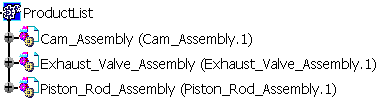
When you have finished reordering your list, click
OK.
|
 |
You can only modify the order of the parent items within a list; you
cannot use this command to re-order parts within a product. You
can, however, switch to the Product Structure workbench and re-order the
child elements within the product and resource lists. |
|
|
To see your re-ordering every time you open your PPR tree, you must save
the file for your changes to persist. |
