
When you retrieve the model properties, parameters are created. They are hidden, but you can decide to show them. They are editable.
Provided you have access to knowledge functions, you can create a formula to define the Projected Area.

- Open GettingStarted.CATPart from the samples directory.

Define Projected Area as a Formula
-
Go to the Tools > Options > General > Parameters and Measure > Knowledge Environment tab and make sure MethodTlg is in the Packages to load.
-
Create a formula as explained in the Knowledge Advisor User's Guide: Using Formulas.
This formula is a New Parameter of type Area, with a Single Value, named ProjectedArea. -
Under Dictionary, select Tooling.
Two implementations are proposed, one for a surface, one for a solid. -
Complete the formula by selecting its Shape and its Axis System where the Z component corresponds to the Pulling Direction.
If you change one input of the ProjectedArea formula, the parameter is
automatically updated.
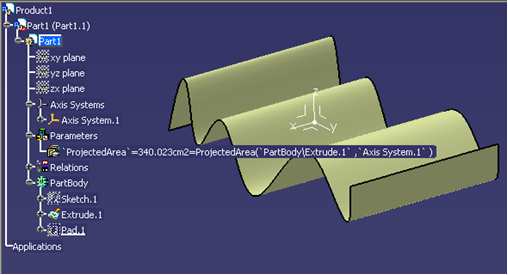
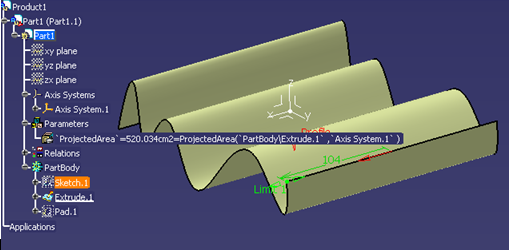
Retrieve the Model Properties
-
Click Model Properties
 in the Models toolbar.
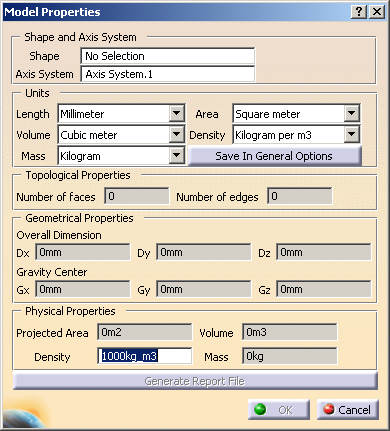
The Model Properties dialog box is displayed.
-
Select the Shape to analyze, and the Axis System.
You can pick a shape, or the body containing the shape.
The axis system defines the directions for the computation of length and the pulling direction for the computation of the projected area.
The dialog box is updated with information from the model:
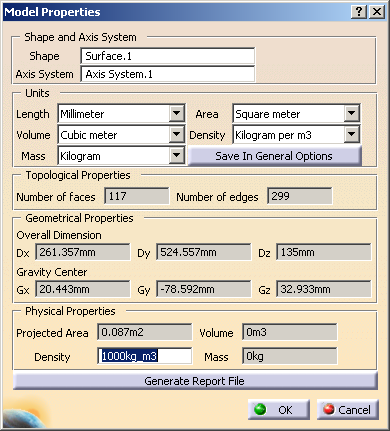

- The shape must be connex.
- Only right-handed axis systems are supported.

-
Define the Density value, to ensure a correct computation of the Mass.
By default, Density is set to 1000Kg/m3, or at the material density you may have defined in a design table. -
Click Generate Report File and
- Enter the file path in the dialog box that opens and click Save.
- Click OK in the main dialog box.
An HTML file and an XML files are created under the path you have entered.
-
Go to the directory where you have saved the files and open them.
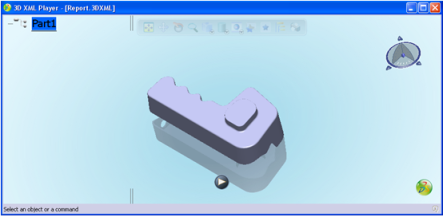
A 3DXML viewer is available here.
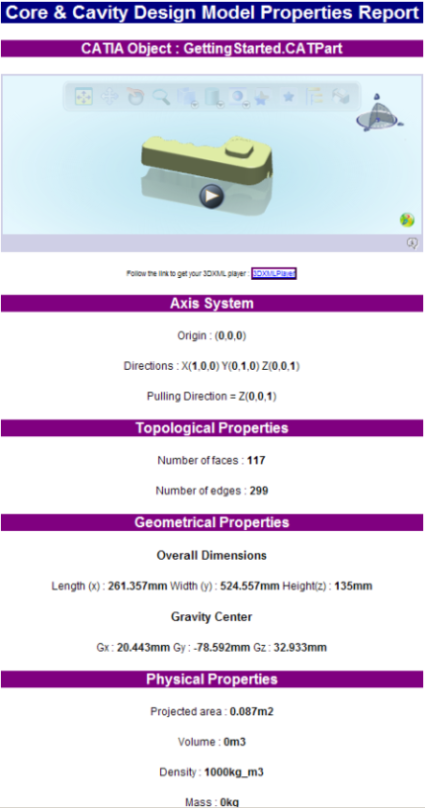
The information listed in the dialog box are retrieved in the report file.
Example of HTML file:
Example of XML file:
-
When you click OK, Hidden Parameters are created in the specification tree.
They are updated if they already existed.
Right-click Parameters and
select Parameters object > Hidden Parameters to display the dialog box:
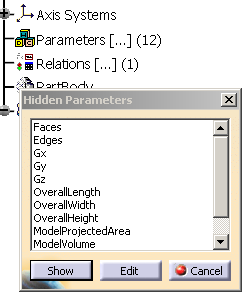
From the Hidden Parameters dialog box, you can:- Select hidden parameters in the dialog box and click
Show to make them visible:
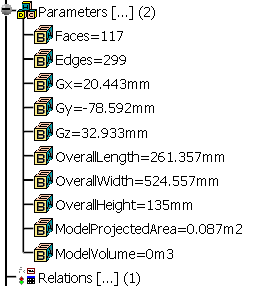
- Select hidden parameters in the dialog box and click Edit to edit them.
- Select hidden parameters in the dialog box and click
Show to make them visible:
