-
Right-click the root product and select Components
> New Product
 .
.
Name it Electrical.
-
Right-click the root product again and select
Components > New Product
.
Name it Mechanical: you will use this one to create the
context: the casing.
-
Right-click the Mechanical product and
select Components > Existing Component
 .
.
The File Selection dialog box opens.
-
Select the casing.CATPart.
| At this stage, the document looks like this: |
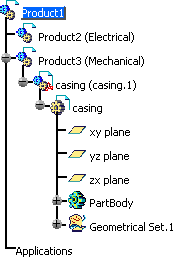 |
-
Double-click the Electrical product and
select Start > Equipment & Systems > Circuit Board Design
workbench.
-
Select
Import in context
 .
.
You are prompted to select a face as the context.
-
Select the top face of the casing.
The Circuit Board Design dialog box opens.
-
Navigate to select the Reconciliation1.idf
file.
-
Navigate to select the default.lib file then
click OK.
The status bar indicates the import progression.
The result looks like this:
Note: click the Publication in the
specification tree.
It shows the association of labels to the geometrical faces of
the board: Top and Bottom. |
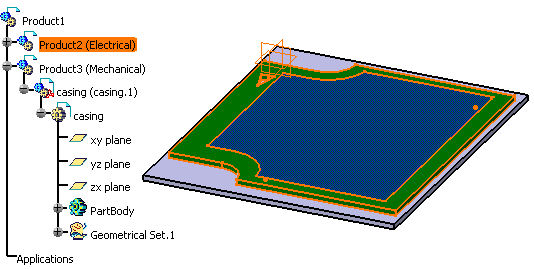 |
-
Switch to the Assembly Design workbench.
You will define the label for the casing top face.
-
Select Tools > Publication...
 .
.
The dialog box opens.
-
Click Browse... .
The Publication dialog box opens.
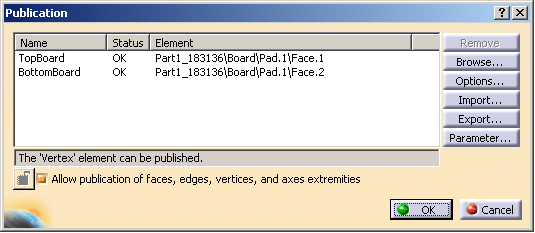
-
Click OK.
-
Double-click to activate the root product.
-
Click
Coincidence Constraint
 .
.
-
Click Close in the Assistant dialog box.
|
You are prompted to select the faces you want to
be constrained:
- select the publication label of the casing
- then the publication label of the bottom of the board
|
| The coincidence constraint is created and added to the
specification tree. |
-
Double-click Coincidence.1 (Electrical,Mechanical)
under the Constraints node in the specification tree. The Constraint
Definition dialog box opens:
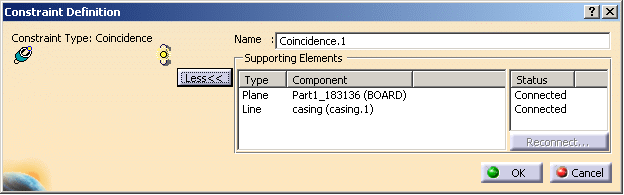
It shows the type, components and status of the constrain.
-
Click OK to validate.
-
Right-click the Electrical Product and
select Components > Replace Component
 .
.
The File Selection dialog box opens.
-
Select the Reconciliation2.idf file.
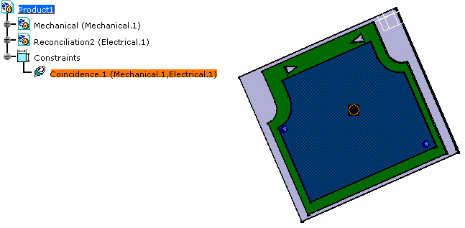
In this file a pocket has been added to the board.
The Import dialog box opens to let you choose the
default.lib
The status bar indicates the progression.
The result looks like this: |
 |
-
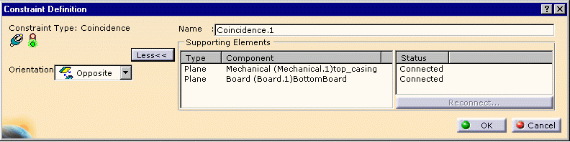
Double-click Constraint
.
You can see the Constraint Definition.
The coincidence constraint has been maintained although the board
has been replaced. |
 |
-
Click OK to validate.


