
You do not need to be an administrator to obtain information about installed software: this capability is available to all users, and at any time.
On Windows

CATIA
ENOVIA_DMU_Navigator
DELMIA
ENOVIAV5VPM
ENOVIA_3d_com
or run the program:
install_root\code\bin\CATSoftwareMgt.exe
where "install_root" is the name of your installation folder which is, by default:
     WindowsInstallPath\win_b64 (64-bit code
		on Windows and 32-bit code on Windows, x64 Edition)
The Dassault Systemes Software Management dialog box is displayed, and the General tab is open.
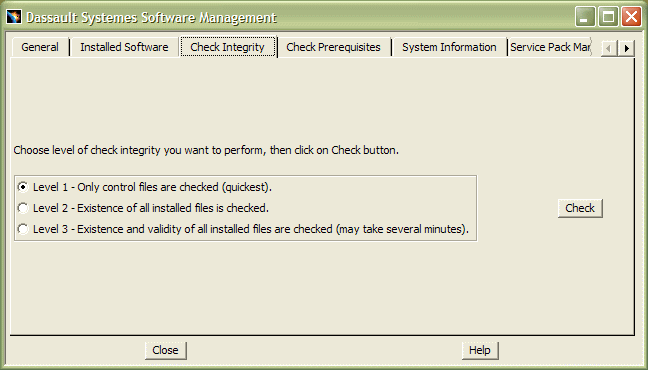
2. Click the Check Integrity tab:
The installer installs compressed archive files. Each contents of an
archive file is described in a control file.
This checks the overall integrity of your software.
There are three integrity check levels:
- Level 1: Checks only the control files. This is the quickest check. It checks for the presence of all the necessary control files in the installation directory.
- Level 2: Checks the existence of all installed files. It checks for the presence of all the necessary control files in the installation directory. It also detects if a file is removed after the installation.
- Level 3: Checks the existence and the validity of all the installed files. Checks that all files listed in the control files are present and are valid. It also detects if a file is modified after the installation.
The message Integrity is OK confirms there is no integrity problem. However, when the message Integrity is KO appears, it signifies that your installation has been corrupted (for example, some files are missing) which is followed by troubleshooting information helping you to identify the problem.
When running a level 3 integrity check on a remote computer from a Windows client, a read error may occur on several files due to a saturation problem.
These errors may cause the following message to appear:
unable to open this file in reading mode
The problem may be resolved by deactivating the cache of the network redirector on the client computer, by modifying the following registry key as follows:
1. Open the registry at the following location:
HKEY_LOCAL_MACHINE\SYSTEM\CurrentControlSet\Services\Lanmanworkstation\parameters
2. Modify the following value:
Value name: UtilizeNTCaching
Data type: REG_DWORD
Data: 0
Please exercise extreme caution when editing the registry. It is only recommended for advanced users with the proper authorization: deactivating the network cache may cause the computer's performance on the local network to deteriorate.
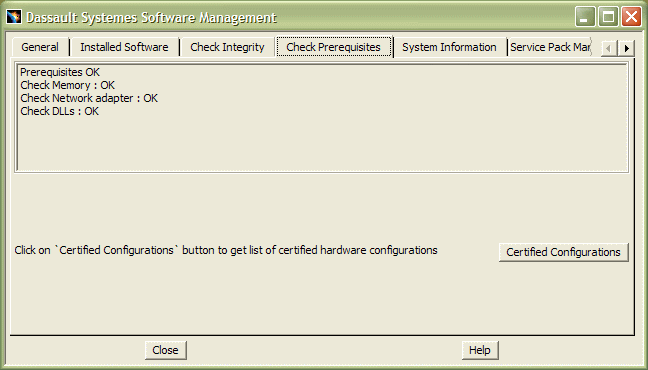
3. Click the Check Prerequisites tab.This simply checks if you still have the prerequisite environment required for your product line to operate:
Clicking the
Certified Configurations button
opens the Hardware Certification section of the www.3ds.com
website containing a list of certified hardware configurations.
On UNIX
2. Enter the command:
UNIXInstallPath/OS/code/command/catstart -run
CATSoftwareMgt
where "OS" is:
- aix_a
The Dassault Systemes Software Management dialog box is displayed, and the General tab is open.
3. Click the Check Integrity or Check Prerequisites tab.
The checks performed are the same as on Windows (see above).
