
A Few Definitions
Database objects
Data structures implemented to support the PLM database. Generating database objects:
- creates (or uses existing) tablespace (Oracle and DB2) and bufferpool (DB2 only)
- creates data structures (application tables, indexes and views) using the DDL files installed with the code; the role of these data structures is to manage data persistency and object mapping
- sets up privileges for accessing the data structures
- in all database domains, sets up (inserts) CDM STEP data required for domain management (mapping of domain objects)
- creates (if necessary), alters and grants the Database table owner and the database connection user in the database.
Startup data
Once the data structures have been created, the installation inserts startup data into certain database application domains. Generating startup data:
- sets up domain administration
- sets up a default people and organization (P&O) implementation comprising a root organization (ADMIN), a default role used for logging on (VPMADMIN), and an administrator
- creates default security management: privileges (functional access control), masks (data entity & attribute access control) and processes.
Settings
Setting files: CATDbServers.CATSettings, CATRdbServers.CATSettings, VPMAdmin.CATSettings, TransactionRepos.CATSettings.

Starting the PLM Database Setup Program
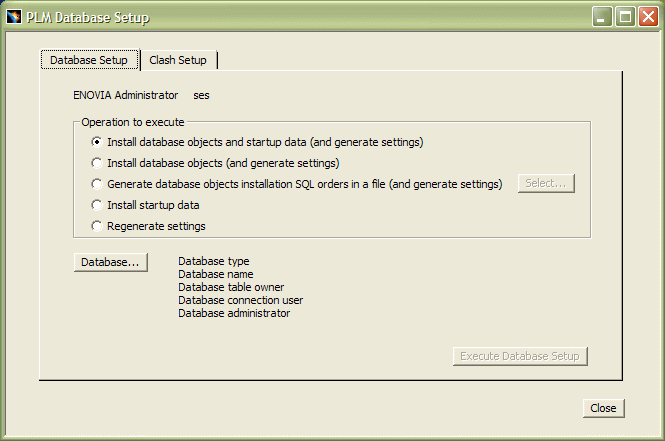
When the installation procedure initializes the PLM database setup process, the Authentication dialog box appears along with the PLM Database Setup dialog box.
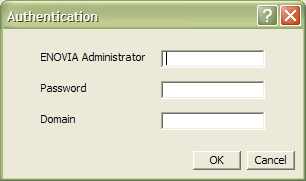
The ENOVIA Administrator:
- has administrative privileges
- creates users
- grants privileges for users
- grants roles to users
- grants process access to users
- must already exist as a system user.
Note: Administrator can also launch PLM Database Setup
using the PLMDBSetup.exe file from ../../win_b64/code/bin directory of
ENOVIA V5 media.
Description of Operations to Execute
The operations to execute using the PLM database setup dialog box are:
Install database objects and startup data (and generate settings)
Generates data objects, startup data and settings. This is the default option.
Install database objects (and generate settings)
Generates only the bufferpool (DB2 only) and/or tablespace to be created (if required), the Database table owner and the database connection user to be created in the database (if necessary), altered and granted, and the DDL files SQL orders to be executed, creating the tables, indexes, views, inserting values and doing grants. The startup data will not be installed: their installation needs the database objects to be installed before.
Generate the database objects installation SQL orders in a file (and generate settings)
If you don’t want to install the database objects during the PLM database setup, but want only to generate a file containing the SQL orders to execute later in order to install the database objects, use this option. Startup data will not be installed.
Install the startup data
Generates the Project startup data (LoadAdmin), the People and Security startup data and the Graphs import startup data. This should only be done when the database objects already exist.
Regenerate settings
If you have already installed the database objects and the startup data, this option regenerates and updates the environment file and the settings (CATDbServers.CATSettings, CATRdbServers.CATSettings, TransactionRepos.CATSettings, VPMAdmin.CATSettings, and VPMAdmin.adm).
Install database objects and startup data (and generate settings)
- Enter the user name and password of the ENOVIA Administrator, and the
Domain name, then click OK.
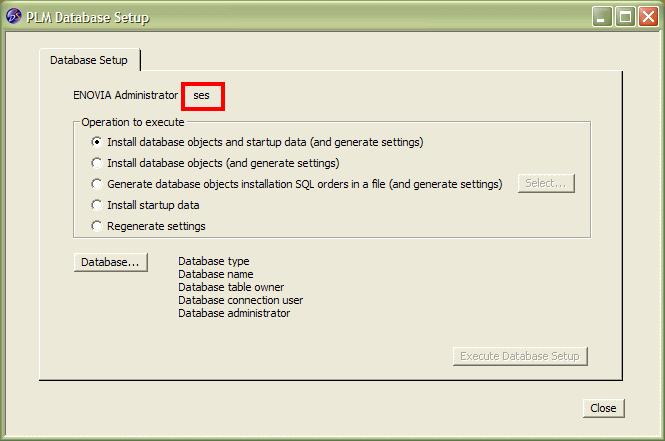
The ENOVIA Administrator name is added to the top of the PLM Database Setup dialog box:
The choices are:
- Install the database objects and the startup data (and generate settings)
- Install database objects (and generate settings)
- Generate database objects installation SQL orders in a file (and generate settings)
- Install startup data
- Regenerate settings
The default option when installing the database from scratch is Install database objects and startup data (and generate settings)
Note: in the context of migration, you will use the PLM database setup tool to process already existing databases created using ENOVIA LCA.
- You are going to create the database objects and startup data, so
use the default option and click the Database... button.
A dialog box prompts you to indicate the database type:
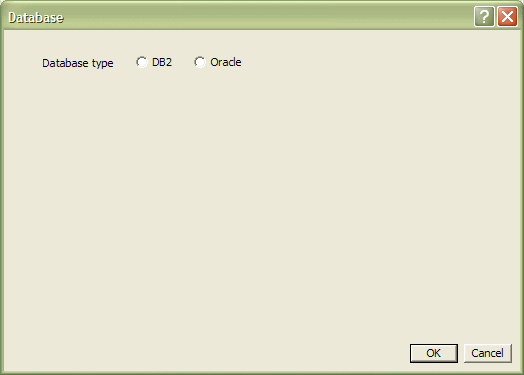
- Select the check button for the database you are using, then click
OK.
For example, check the DB2 option to access the DB2 options.
Options Specific to DB2
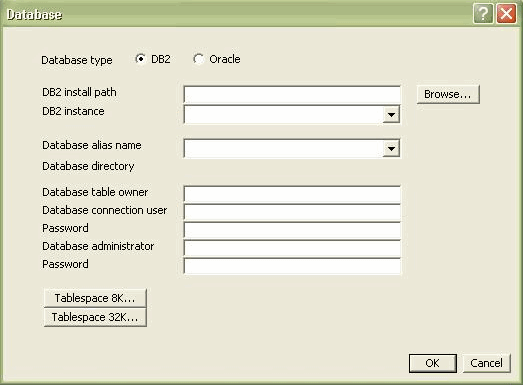
Options Description DB2 install path Click the Browse... button to select the DB2 install path. Usually, the DB2 install path is the same as the DB2 instance path on Windows (unless it is specified at the instance creation). For example:
C:\Program Files\IBM\SQLLIBIt must contain:
bin\db2ilist.exe.Selecting the install path automatically detects the DB2 instance, Database alias name and Database directory.
DB2 instance Click on the selection button to select the DB2 instance.
Database alias name Select the database alias name for the chosen DB2 instance.
Note: All available DB2 instances, remote as well as local, will appear in the selection list.
Database directory If the database directory of the chosen database alias is LOCAL, then the database directory field will contain its path. If the database directory of the chosen database alias is REMOTE, then the database directory field will simply specify the text REMOTE. Database table owner The Database table owner is known in the database, but is not known in ENOVIAV5VPM. Database connection user This is a system userid used to connect to the database. All connections to the database will be performed under this id (the main interest of this specific user being for remote database connectivity, since server authentication is being used). With a local database, it might be identical to be the database administrator. This user creates the data structures in the database. Password Enter the database connection password. Database administrator Specify the user name for the database administrator. The database administrator:
- has the privileges to administrate the database
- creates tablespaces (spaces for the data structures that will contain the data).
Password Enter the database administrator password. Create tablespaces for both 8K and 32K. 32k tablespace is used for specific customized attributes but it is recommended to use 8K table space for performance reasons.
Options Specific to Oracle
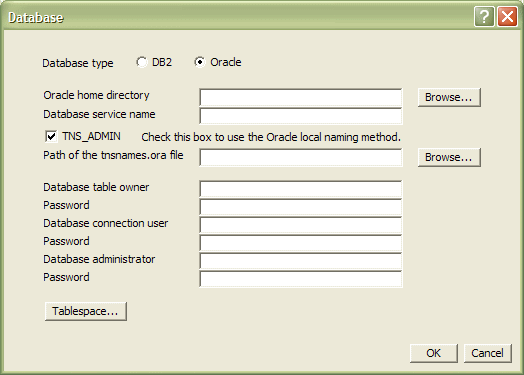
Options Description Oracle home directory Click the Browse... button to select the Oracle home directory. Database service name Enter the Database service name.
Oracle clients communicate with Oracle servers through service names, which are easy-to-remember aliases for database addresses. Service names can be resolved using various methods:
- Local Naming method: resolves service names using a local configuration file (TNSNAMES.ORA, SQLNET.ORA, LISTENER.ORA).
- Centralized Naming method: resolves service names using Oracle Names (highly recommended to centrally administer large Oracle networks).
To use the Local Naming method check the TNS_ADMIN check box (this is the default).
The path of the default
tnsnames.orafile containing the list of database service names is highlighted, but you can click the browse button and choose the file at a different location.Database table owner The Database table owner is known in the database, but is not known in ENOVIAV5VPM. Password Enter the Database table owner password.
Database connection user This is a user database. All connections to the database will be performed under this user (the main interest of this specific user being for remote database connectivity, since server authentication is being used). With a local database, it might be identical to be the database administrator. This user creates the data structures in the database.
Note: For Oracle, do not choose userids starting with a numeric character, an error may occur. If you do, a warning message will prompt you to correct the problem.Password Enter the database connection password. Database administrator Specify the user name and password for the database administrator. The database administrator:
- has the privileges to administrate the database
- creates tablespaces (spaces for the data structures that will contain the data).
Password Enter the database administrator password. Selecting the Tablespace in DB2
- Click the Tablespace... button.
The Tablespace dialog box is displayed:
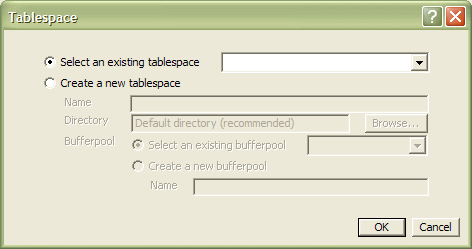
- Check either the Select an existing tablespace or
Create a new tablespace option.
To create a new tablespace, enter its name and the directory where it is to be stored, then select an exiting bufferpool or create a new one and name it:
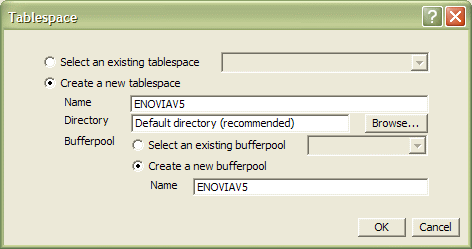
Note: the tablespace is a physical container used for storing the tables in the database.
Selecting the Tablespace in Oracle
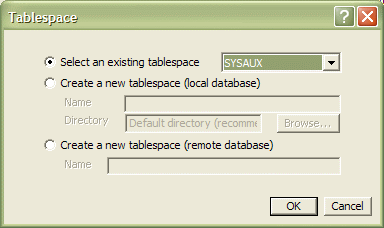
You can select from the following two existing tablespaces:
- SYSAUX
- USERS.
Separate options exist allowing you to create a new tablespace on either a local or a remote database.
- Click OK.
This returns you to the Database dialog box which now contains the name of the tablespace.
- Click OK again.
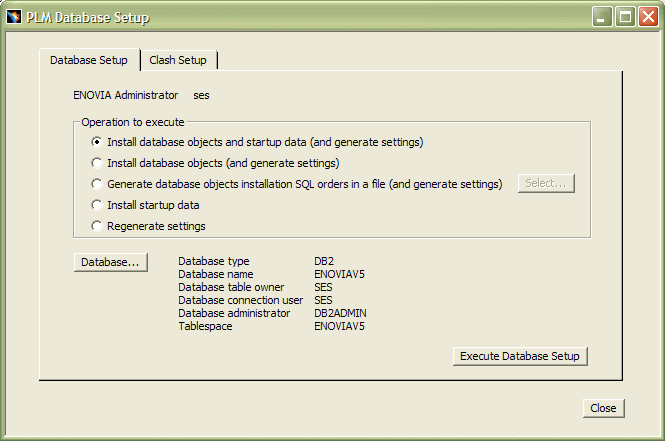
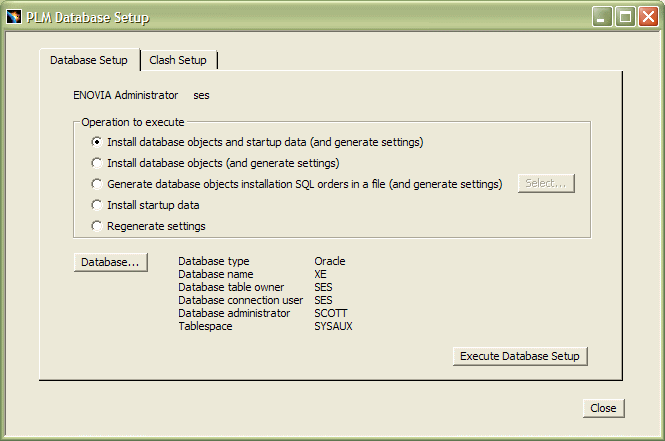
This returns you to the PLM Database Setup dialog box containing all the information you entered, for example for DB2:
and for Oracle:
- Click the Execute Database Setup button to set up the PLM
database.
The setup process starts:
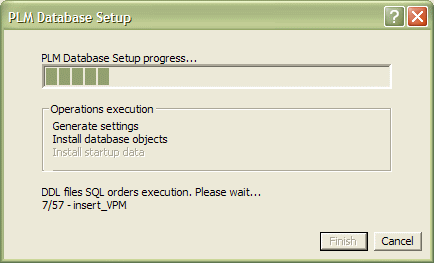
then comes to an end when you see the following dialog box:
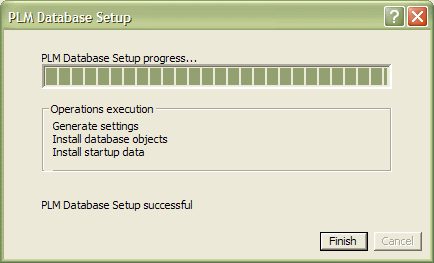
displaying the message:
PLM Database Setup successful
- Click the Finish button to finish setting up the PLM
database.
Warning: A default installation creates the Tools menu. However, there may be certain cases later in which you installed an ENOVIAV5VPM environment without creating the Tools menu containing the
PLM Database Setup
       	VersionNumber
command. If this is the case, go theinstall_dir\code\bindirectory and run the following command to start the ENOVIA database setup operation with the correct environment:catstart -run plmdbsetup -env myenvironment -direnv -myenvironment_pathLog File
The log file is located in the installation directory and is named:
SetupPLMDB.log
