
Editing the Server Environment
When you installed and set up the ENOVIAV5VPM server, a runtime environment was created. You must now edit this environment and make some minor changes to ensure that end users logging onto the ENOVIA server inherit all the resources (settings, etc.) specific to each end user.
This mechanism concerns ENOVIAV5VPM servers on both UNIX and Windows.
Windows
Note that, on Windows, you do not have to customize the default value: it will work as is. However, you are free to customize it if you wish. To do so:
- Start the Environment Editor.
- Locate the
USER_HOMEvariable.
The default value on Windows is:
CSIDL_COMMON_APPDATA\DassaultSystemes\DSKEY_USERIDwhich typically points to:
C:\ProgramData\DassaultSystemes\DSKEY_USERID
- Edit the variable and specify a path. You can
specify a path like this, for example:
C:\Users\%CATRealUser%\
or like this:
C:\Users\DSKEY_USERID\
- Save the environment and exit the Environment Editor.
UNIX
On UNIX, however, the default variable MUST be edited, it does not work as is.
- Start the Environment Editor.
- Locate the
USER_HOMEvariable.
The default value on UNIX is$HOME.
- Edit the variable and specify a path.
On UNIX, for example:
$HOME/ALL_LCA_Users/$CATRealUser
$CATRealUservariable.
- Save the environment and exit the Environment Editor.
Role of the USER_HOME and $CATRealUser Variables
The USER_HOME variable points by default to the home directory of the
physical userid created to start the
ENOVIAV5VPM server. It must always be customized on
UNIX. If this value is not customized, successive end users will be able to
log on, but they will inherit the settings of the previous user and then
overwrite them with their own settings, which will in turn be inherited by
the following user, etc.
Positioning the USER_HOME variable to point to the path of the userid
creates all user settings in the same place; including the $CATRealUser
variable in the path ensures that a directory is created in the same
directory for storing user-specific settings.
We strongly recommend that you do not skip this step.
Issuing the xhost + Command on UNIX Before Starting the Server
For UNIX installations only, the xhost + command must be
issued on the UNIX server console each time the server is booted up before
any LCA Navigator or 3d com WebSphere application server is started. Also,
once this is done, the window where it is issued must remain open on the
console, but it can be minimized if desired. Additionally, in the case of a
UNIX server that doesn't have a dedicated physical console installed, some
form of a remote console logon setup is required to support the xhost
+ requirement.
There is an exception to the above on AIX servers, where the optional
use of XVFB (virtual frame buffer) is supported. When this is used, and the
application server DISPLAY environment entry in the application server is
appropriately set to use it, the xhost + isn't required.
When there is a problem anywhere in the DISPLAY setup, the last entry in
the SystemOut.log file during the application server startup
will be:
[3/28/06 8:48:41:489 EST] e2cea37 SystemOut O + Registered
servlet[hcb] Asynchronous Callback Servlet for HTML
Here's an example of an AIX server containing both the hardware graphics
adapter (:0), and the XVFB (:1) capabilities setup. In this case, if the
application server is set up to use the hardware graphics adapter, the
xhost + is required, and the DISPLAY variable would be set to
<servername>:0. However, if the application server is setup to
use the XVFB, the xhost + command isn't required, and the
DISPLAY variable would be set to <servername>:1.
HARDWARE GRAPHICS ADAPTER
root 131168 114868 0 Mar 22 - 0:44 /usr/lpp/X11/bin/X -x abx -x
     dbe -x GLX -D /usr/lib/X11//rgb -T -force :0 -auth /var/dt/A:0-A2Mlqa
XVFB
root 311462 1 0 Mar 22 - 0:00 /usr/bin/X11/X -force -vfb -x abx -x
     dbe -x GLX :1
Note: The XVFB setup is an excellent solution for situations where a hardware graphics adapter isn't available on the AIX server, or when optimum graphics processing throughput is desired, and sufficient server CPU and memory resources are available to support the requirements.
There is another situation on AIX servers that can lead to the
application server failing to start, as indicated above. This is where
someone has removed files from the /tmp directory, including
the /tmp/.X11-unix directory. This directory is required for
graphics processing, and in the case of the above server setup, it contains
sub-directories for both the hardware graphics adapter (X0), and the XVFB
(X1) as listed below. Once removed, graphics processing will fail until the
server is rebooted.
# pwd

     /tmp/.X11-unix

     # ls

     X0 X1
How to secure the ENOVIA server installation – Best Practice
Reminder
When you log in as an ENOVIA user, you are the owner of the server
process. This server process must be executed with the ENOVIA User
identity.
The ENOVIA GW0Runner executable is used to impersonate the ENOVIA server
processes. To do this operation, a specific right (s bit) is set to
GW0Runner and it must belong to UNIX ‘root’ user.
Caution
Although GW0Runner is not designed to be directly executed from a command line, it can be misused to launch programs with improper rights, because of its special properties. Therefore, attention must be paid to secure its access.
This will be achieved if the ENOVIA installation meets basic security rules:
- ENOVIA server must be installed on an isolated computer, with controlled remote access.
- The ENOVIA installation files should be accessible by restricted users only (root, admin).
However, if these rules cannot be met, you must apply the following instructions:
How to protect the access of GW0Runner
- Use a specific UNIX group
One UNIX group (for example, ESG) must be created to manage the right of server starter chain. Admin users who will start orbix daemon (for example, EUA1) must be associated to this UNIX group. Applicative ENOVIA users (for example, U1) must not be associated to this group.
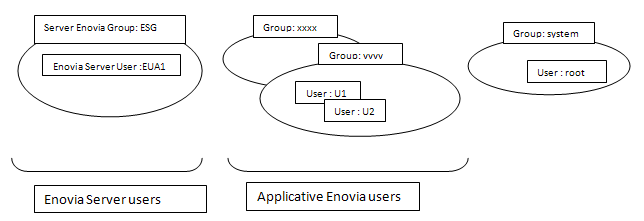
ESG should be the 'system' group if the ENOVIA server is managed by the members of the 'system' group only.
- Change the file right
The right of GW0Runner module must be restricted as follows:
-r-s r-s r-- 1     root
			ESG     12559 Sep 26 2009
			GW0Runner
You can use chmod an chown commands to do this.
For example:chmod o-x GW0Runnerwill make sure that no one outside the ESG group can run the executable.
- Start daemon orbix with an admin user
Use the user associated in UNIX group ESG (for example, EUA1) to start the orbix daemon
# su - EUA1

			$ cd /appl/R20Custo/CODES/aix_a/code/command

			$ ./catstart -run runOrbix

			Starting runOrbix program. Please wait...

			runOrbix : Daemon orbix is running with DISPLAY=newenoaix14plp:0
You can check the identity of orbix daemon process and the ServerManager process
$ ps -ef | grep -i orbixd

			EUA1 1208560 1 0 20:40:00 pts/5 0:00
			/appl/R20Custo/CODES/aix_a/code/bin/orbixd -u –s

			$ ps -ef | grep GW0SRVMG

			EUA1 450806 1208560 0 20:44:20 pts/5 0:00 GW0SRVMG
			CATIAServerManager -env ENOVIA_V5_VPM.V5R20.B20 -direnv
			/appl/R20Custo/CATEnv -timeOut 3600000
