Resource Layout   

This page deals with the Resource Layout options for Release Detailing products.

General Environment

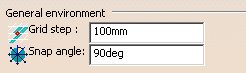
Grid Step

The Grid step option determines the default size of the grid.

Snap Angle

The Snap angle option determines the default area set for an object to be snapped.  For example, if an object to be snapped is within 90deg (the default) of the object to which it is to be snapped, then the snap occurs.

The initial settings of both options appear above.

Catalog Placement Options

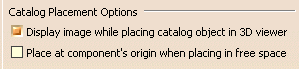
Display Image while Placing Catalog Object in 3D Viewer

If you select the Display image while placing catalog object in 3D viewer check box (the default), you can see a graphical representation of the item from the catalog when the object is imported.  Otherwise, only the PPR tree is updated.

Place at Component's Origins When Placing in Free Space

If you select the Place at component's origins when placing in free space check box, component is automatically placed at its origin axis.  You must selection a location for the item.

The initial settings of both options appear above.

Footprint 

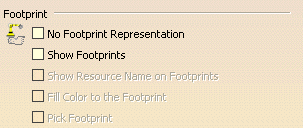
Show Footprints

If you select the Show Footprints check box, you can see a graphical representation of the footprint.  When this check box is selected, the options below it become available.

Show Resource Name on Footprints

If you select the Show Resource Name on Footprints check box, the footprint shows the name of the resource in the 3D viewer.  The option is only available for selection when you have selected the Show Footprints check box.

Fill Color to the Footprint

If you select the Fill Color to the Footprint check box, the footprint's representation within the 3D viewer includes color. The option is only available for selection when you have selected the Show Footprints check box.

The initial settings of all options appear above.

Grid 

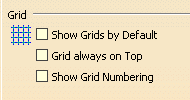
Show Grids by Default

If you select the Show Grids by Default check box, the grids appear by default whenever you enter the Resource Layout workbench.

Grid Always on Top

If you select the Grid always on Top check box, the grid appears in the top layer of the 3D viewer and is consequently always visible. The grid can be rendered two ways: normal or always on top. In normal mode, the grid is hidden by any object on top of it. In always on top mode, the grid is always visible.

Show Grid Numbering

If you select the Show Grid Numbering check box, a grid appears showing the axis name and the number of lines relative to their axis. For instance, the image below shows grid numbering in a grid comprising the X- and Z- axes.

The initial setting of all the options is that is that they are not selected.

Attachment display options 

These options determine the show/no show behavior of attachments.