
This page deals with the In-process Model tab options:

These options let you set the color for the faces currently
being machined and the previously machined faces of the IPM.
 The
default colors are red and yellow respectively.
The
default colors are red and yellow respectively.
Selecting this check box allows you to display currently
machined faces in the color specified in the current operation's Properties
(see Note below).
Previously machined faces will remain in yellow.
By default, this option is not selected.
Note: You can specify a color for any machining operation using the Graphic tab in the Properties dialog box (just right-click the operation in the tree to access this dialog box).
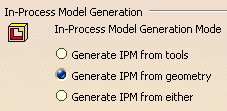
Only the parameters defined in the Tools tab
 of the machining
operation dialog box are used to generate the IPM. If no tool parameters are
defined, no IPM is generated for the corresponding machining operation.
of the machining
operation dialog box are used to generate the IPM. If no tool parameters are
defined, no IPM is generated for the corresponding machining operation.
Only the parameters defined in the Geometry tab
 of the machining
operation dialog box are used to generate the IPM. If no geometrical parameters
are defined, no IPM is generated for the corresponding machining operation.
of the machining
operation dialog box are used to generate the IPM. If no geometrical parameters
are defined, no IPM is generated for the corresponding machining operation.
This is the default setting.
IPM generation is attempted first through the parameters as defined in the Tools tab of the machining operation dialog box. If no tool is associated to the machining operation, the IPM is generated using the parameters as defined in the Geometry tab of the machining operation dialog box.
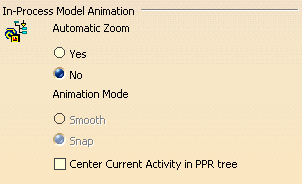
This option lets you automate the cruise/zoom capability used when inspecting geometry changes.
No - The automatic zoom capability is disabled. This is the default
setting, which gives better performance.
Yes - During IPM navigation, when you visit a machining operation, an
IPM Viewer is opened displaying only the current IPM part.
The IPM will automatically be rotated/translated/zoomed so that the face
machined by that operation is visible. As different activities in the PPR tree
are navigated, the current IPM face will be displayed in the new 3D window.
This option controls the type of motion when Automatic Zoom is set to Yes.
Smooth - the automatic zoom is done with a smooth
movement.
Snap - the automatic zoom snaps into position. This is the default setting,
which gives better performance.
Select this checkbox if you want to center the current activity in the PPR tree.