

-
Select the Tools > Options... command.
-
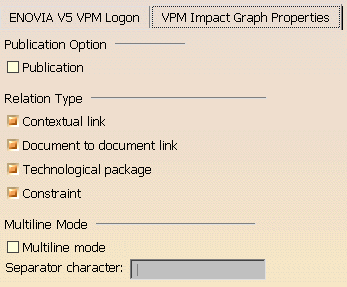
Click the ENOVIA V5 VPM category and select the VPM Impact Graph Properties tab:
-
In the Publication Option section of the dialog box, click the Publication box if you want to have publications appear in the impact graph. To deselect, just reclick the box.
For more information, see "Filtering the Contents of the Impact Graph" in the section "Using the Impact Graph Workbench" of the VPM Navigator User Guide. -
In the Relation Type section of the dialog box, select or clear the four available boxes to choose the default impact graph settings. In this way, the next time you open a VPM Navigator session and bring up an impact graph, it will show contextual links, document-to-document links, technological packages and/or constraints as you require.
For more information, see "Filtering the Contents of the Impact Graph" in the section "Using the Impact Graph Workbench" of the VPM Navigator User Guide. -
In the Multiline Mode section of the dialog box, click the Multiline mode box if, instead of displaying a node name on a single line, you prefer to have the different reference and instance names on different lines, separated by the (non-displayed) separator character you use. To deselect, just reclick the box.
Once the Multiline mode box has been selected, the Separator character field is ungrayed. By default, the character "|" is displayed in this field but you can enter any separator. If you do not select any separator but then click OK, an error message will inform you of this and prompt you to do so.
For more information, see "Using the Multiline Mode" in the section "Using the Impact Graph Workbench" of the VPM Navigator User Guide. -
Click OK.
