
This page deals with the following option in the Visualization tab:
Layout Creation

Select a render style to be applied by default to
the newly-created layouts.
 By default, Shading with edges is selected.
Background And Cutting Plane
 |
Display when loading layout
Select this option if you want to activate the cutting plane and display the background every time the CATPart containing the 2D layout is opened.
Highlight Propagation
 |
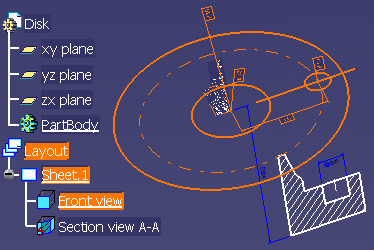
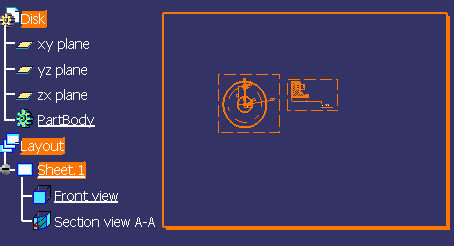
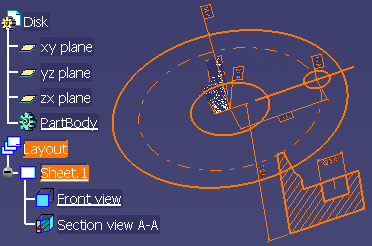
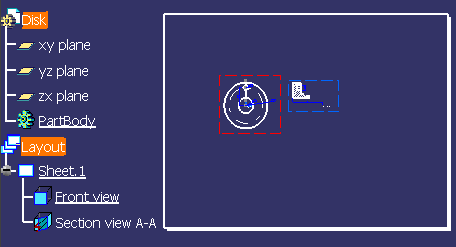
Propagate highlight
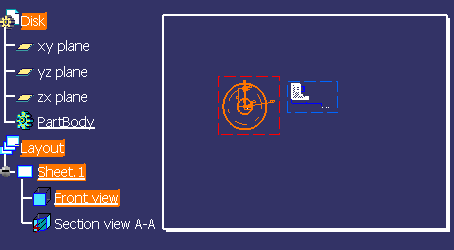
Select this option if you want to highlight
- View sub-elements when the view is selected
| 2D window | 3D window |
 |
 |
- Sheet sub-elements when the sheet is selected
| 2D window | 3D window |
 |
 |
- Layout sub-elements when the layout is selected
| 2D window | 3D window |
 |
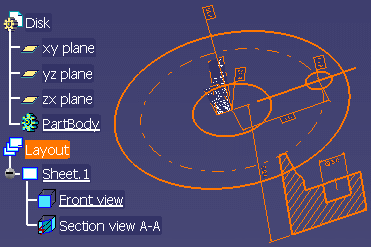 |
Clear this option if you want to highlight:
- Nothing when the view is selected
| 2D window | 3D window |
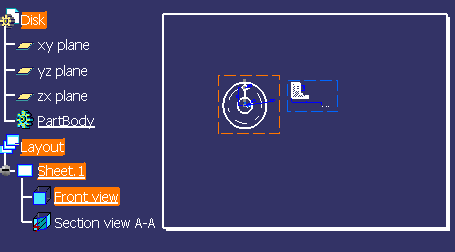 |
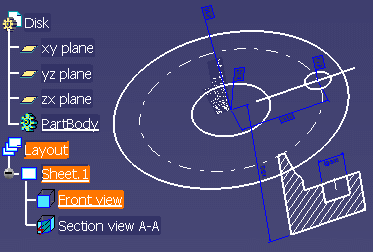 |
- Nothing when the sheet is selected
| 2D window | 3D window |
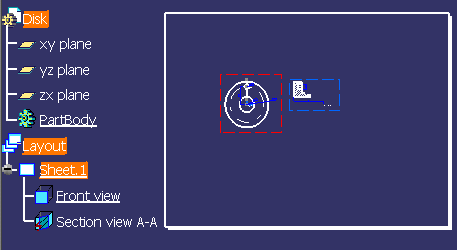 |
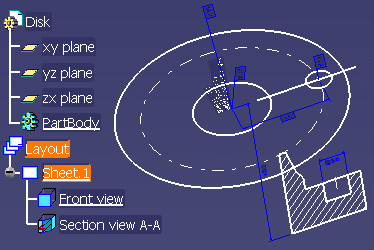 |
- Nothing when the layout is selected
| 2D window | 3D window |
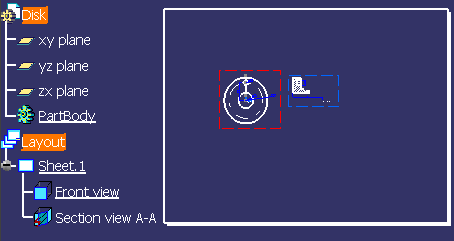 |
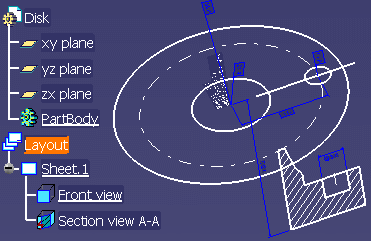 |
 | Note that the highlight in the specification tree is not modified by this option. |
Layout Window
Tile window when activating Layout
Select this check box to tile the layout and 3D windows when activating
the layout.
By default, this check box is selected.
Fit sheet size only
Select this check box if you want Fit All In in the View
toolbar to reframe the viewer to fit the sheet size (even if the sheet size
is not displayed, and independently of the sheet content).
Clear this
check box if you want Fit All In to reframe the viewer to fit
all visible elements in the geometry area.
By default, this check
box is selected.
View Frame
Take background into account when displaying view frame
Select the desired option:
- Automatically: The background view frame is automatically reframed each time you active a layout or a view, activate a sheet, hide/show a layout or a sheet, or run Update or Local Update commands.
- On demand (during update): The background view frame is reframed when you run Update or Local Update commands only.
By default, the background is taken into account automatically.
Render Style on View
Allow modification of Rendering Style of the Layout Viewer
Select this option to modify the rendering style applied on the layout
viewer, if needed. This is to ensure the application of rendering style
defined on a selected view.
By default, this check box is cleared.