
|
The Assembly Split command splits
parts rapidly and very productively. You could actually split each part in
the Part Design workbench, but the Assembly Split command is more
productive since it requires only one interaction. This task shows you
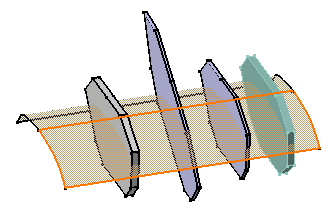
how to split a product including four parts. You can split three of these parts by using a surface. |
 |
Open an assembly. Ensure the design mode is on. |

|
1.
|
Click Split
 . .
|
|
2. |
Select the splitting surface, that is Loft.1. |
|
|
 |
|
|
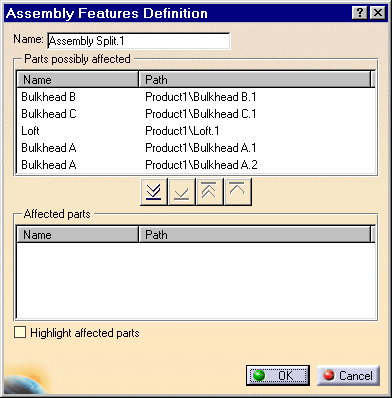
The dialog box that appears
displays the names as well as the paths of the parts that may be affected
by the split action. |
| |
|
The assembly feature's name now
appears in the top left corner of the dialog box. If desired, you can edit
this name. |
|
|
 |
|
3. |
The frame 'Affected parts' is exclusively
reserved for the parts you wish to use. For the purposes of our scenario,
you are going to split Bulkhead A.1, Bulkhead A.2 and Bulkhead B. Note that
Bulkhead A.2 and Bulkhead A.1 are two instances of Bulkhead A.
Move the parts to the list 'Affected parts". To do so, select Bulkhead
A.1 and click the  button. button. |
|
4. |
Repeat the operation for the other two parts.
Alternatively, double-click each part. The other three buttons let you
move the names of the parts from one list to another too:
| |
 moves all selected parts to the list 'Affected parts'
 |
|
| |
 moves all selected parts to the list 'Parts possibly affected'
 |
|
| |
 moves the selected part to the list 'Parts possibly affected'
 |
|
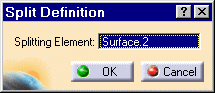
The Split Definition dialog box that has appeared, indicates the
splitting element. |
|
|
 |
|
5. |
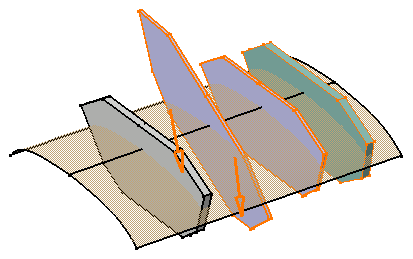
Arrows in the geometry indicate the portion of
parts that are kept. If the arrows point in the wrong direction, click
them to reverse the direction. |
|
6. |
Check the option Highlight affected parts to
clearly identify the parts to split. |
|
|
 |
|
7. |
Click OK to confirm.
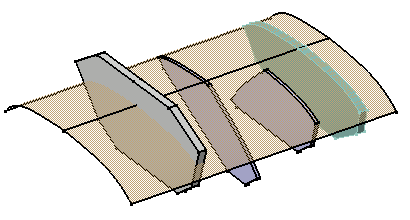
The parts are split. Material has been removed from Bulkhead A.1,
Bulkhead A.2 and Bulkhead B. Conversely, Bulkhead C is intact. |
|
|
 |
|
|
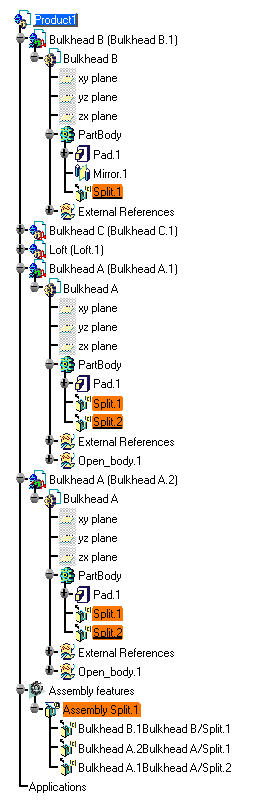
A new entity 'Assembly Features' appears in
the specification tree. It contains the assembly split referred to as
'Assembly Split.1" and the name of affected parts.
Moreover, this feature has generated a split feature in Bulkhead B and
two split features in Bulkhead A.1 and Bulkhead A.2, these parts
being instances of a same original part. An arrow symbol identifies these
splits  in
the tree, meaning that a link exists between Assembly Split.1and them. in
the tree, meaning that a link exists between Assembly Split.1and them. |
|
|
 |
|
|
Editing an Assembly Split
|
|
|
To edit an assembly split, double-click
'Assembly Split.X' entity then you can either:
| |
modify the list of the parts you wish to
split |
| |
change the splitting surface |
| |
redefine the portions of material to keep |
If you need to cut the link between a generated split
and Assembly
Split.X, just use the Isolate contextual command. Obtain a
'traditional' split feature as if you have designed it in Part Design and
you can edit it in Part Design. |
| |
|
Reusing Part Design Splits
|
| |
|
To increase your productivity, you can create
Assembly splits from existing Part Design splits, or more precisely by
reusing the specifications you entered for designing Part Design splits. To
do so, just proceed as follows: |
| |
1.
|
Click the Split icon
. |
| |
2. |
Select the Part Design split of
interest. |
| |
3. |
Both the Split Definition and the
Assembly Features Definition dialog boxes display. You then just need to
specify the parts to split.
The assembly split inherits the specifications as displayed in the Part
Design Split Definition dialog box. You can edit these specifications at
any time. Editing an Assembly feature created in this way does not affect
the specifications used for the Part Design feature. |
| |
|
Reusing Assembly Design Splits
|
| |
|
The application also lets you
reuse Assembly Splits specifications to accelerate the design process. In
this case, you just need to select the existing assembly split, click the
Assembly Split icon and then select a face. Only the Assembly Features
Definition dialog box appears to let you determine the parts of interest. |
