
This task shows how to edit an existing image.

You can edit an activated or deactivated image.
If you want to edit a deactivated image, make sure that the parent
entity is updated.

Open the sample26.CATAnalysis document from the samples directory.

-
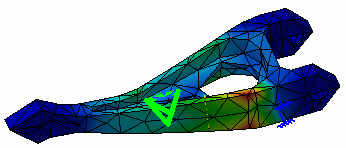
Double-click the Von Mises Stress (nodal values).1 image in the specification tree to edit it.
-
Enter your parameters.
-
Click OK.
Some functionalities of the Image Edition dialog box are not available with the DMU Engineering Analysis Review product.
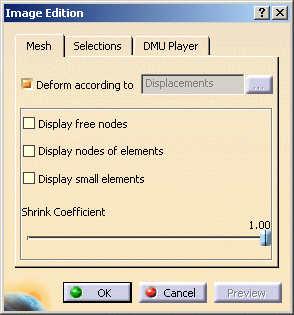
Mesh Tab

-
Deform according to: lets you visualize the deformation according to displacements.
In the case of Dynamic Response Analysis Case (Harmonic or Transient) with restraint excitation, you can specify if you want to visualize the image in an absolute axis (Absolute option) or in a relative axis (Relative option) using the
 button.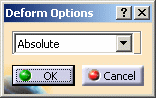
-
Absolute: lets you visualize both the displacement and the elastic deformation of the part.
-
Relative: lets you visualize only the elastic deformation of the part.
-
-
Display free nodes: lets you display free nodes (nodes that are referenced by any element).
-
Display nodes of elements: lets you visualize nodes of elements.
-
Display small elements: lets you choose to display or not the very small elements.
-
Shrink Coefficient: lets you shrink the element visualization.
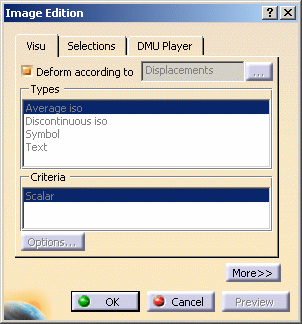
Visu Tab
-
Deform according to: lets you visualize the deformation according to displacements.
In the case of Dynamic Response Analysis Case (Harmonic or Transient) with restraint excitation, you can specify if you want to visualize the image in an absolute axis (Absolute option) or in a relative axis (Relative option) using the
button.-
Absolute: lets you visualize both the displacement and the elastic deformation of the part.
-
Relative: lets you visualize only the elastic deformation of the part.
-
-
All the other options in this tab (Types, Criteria, Options... button and options contained in the More>> frame) are not available in the DMU Engineering Analysis Review context.
Selections Tab
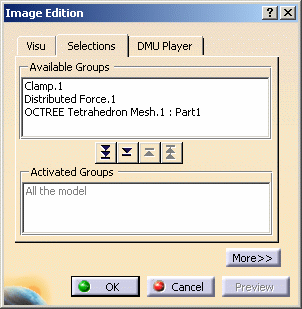
The Selections tab lets you limit the image visualization to a list of entities.
- Available Groups: gives you the list of the available
entities.
The available entities could be:
- mesh parts (under the Nodes & Elements set in the specification tree)
- pre-processing specifications (under the Restraints, Loads and Masses sets in the specification tree)
- user groups (under the Groups set in the specification tree)

You can filter the list of the available entities using the Filter groups... contextual menu.
To know more, refer to Filtering Group Types. -
 button: lets you activate the visualization of all the available entities
contained in the Available Groups frame.
button: lets you activate the visualization of all the available entities
contained in the Available Groups frame. -
 button: lets you activate the visualization of entities selected in the
Available Groups frame.
button: lets you activate the visualization of entities selected in the
Available Groups frame. -
 button: lets you deactivate the visualization of entities selected in the
Activated Groups frame.
button: lets you deactivate the visualization of entities selected in the
Activated Groups frame. -
 button: lets you lets you deactivate the visualization of all the
selected entities contained in the Activated Groups frame.
button: lets you lets you deactivate the visualization of all the
selected entities contained in the Activated Groups frame. - Activated Groups: shows you the list of the entities you
have activated the visualization.
|
|
|
|
|
In case of pre-processing specifications, the type of
entities contained in a selection may be different from a specification
to another.
|
Filtering Group Types
-
Right-click in the Available Groups frame and select the Filter Groups Types... contextual menu as shown below:
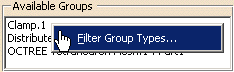
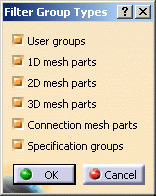
The Filter Group Types dialog box appears.
-
User groups: lets you activate all the groups under the Groups set in the specification tree.
-
1D mesh parts: lets you activate all the 1D mesh parts under the Nodes and Elements set in the specification tree.
-
2D mesh parts: lets you activate all the 2D mesh parts under the Nodes and Elements set in the specification tree.
-
3D mesh parts: lets you activate all the 3D mesh parts under the Nodes and Elements set in the specification tree.
-
Connection mesh parts: lets you activate all the connection mesh parts under the Nodes and Elements set in the specification tree.
-
Specification groups: lets you activate all the entity under the Restraints, Loads and Masses sets in the specification tree.
-
-
Select or clear the desired check boxes.
-
Click OK.
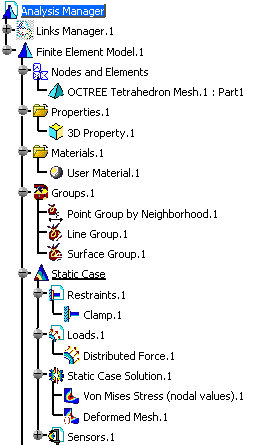
For example, with the following analysis specification tree:
-
if you select only the User groups and the Specification groups check boxes, the Available Groups frame is updated as shown below:
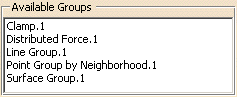
-
if you select only the 3D mesh parts and the Specification groups check boxes, the Available Groups frame is updated as shown below:
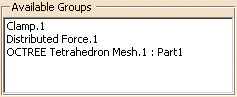
Occurrences Tab
The Occurrences tab is available in the Image Edition dialog box only for multi-occurrence solutions.
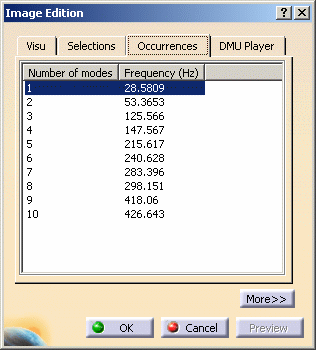
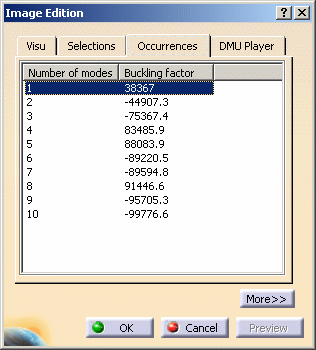
This tab gives you the list of modes with the associated:
- frequencies (Hz) for a Frequency Case and a
Harmonic Dynamic Response Case
- Buckling factor for a Buckling Case
- Time (s) for a Transient Dynamic Response Case
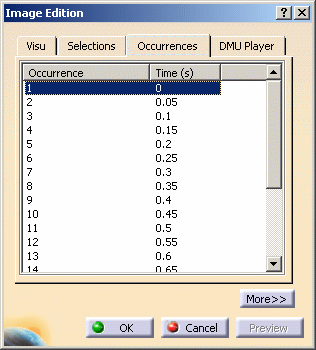
You can then activate separately each mode of the multi-occurrence solution.
DMU Player Tab
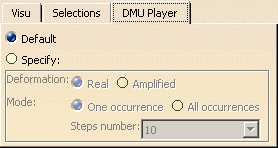
The DMU Player tab allows you to define the animation
parameters for the selected post-processing image that are used when
you animate the image with the Simulation Player
capability in DMU
workbenches.
To learn more about
the Simulation Player, see DMU Navigator User's
Guide - User Tasks - Using Generic Animation - About Player.
- Default: in this case, the DMU player uses the animation parameters that you have defined in post-processing settings (Tools > Options...> Analysis and Simulation > Post-Processing). See Post Processing in the Customization section.
- Specify: lets you specify the animation parameters of the
selected
image.
- Deformation: lets you choose to animate the image
using a real or amplified deformation. The amplified deformation is
computed according to the options you defined using the
Amplification Magnitude capability (see
Amplification Magnitude).
This option is ignored when the Deform according to check box is cleared in the Mesh or Visu tab of the Image Edition dialog box. - Mode: lets you specify if you want to animate one
occurrence (interpolation from the minimum deformation to the
maximum deformation) or all the occurrences of the selected image.
The Steps number options makes the animation more or less fluent.- The All occurrences option is not available for mono-occurrence solutions.
- The Steps number list is not available for multi-occurrence solutions and when All occurrences is selected.
- Deformation: lets you choose to animate the image
using a real or amplified deformation. The amplified deformation is
computed according to the options you defined using the
Amplification Magnitude capability (see
Amplification Magnitude).
Preview Button
By default, the visualization process is launched after each modification in the Image Edition dialog box.
The Preview button allows you to launch the visualization process after performing all the needed changes in the Image Edition dialog box.
|
|
The Preview button is available only if you deactivate the Automatic preview mode option in the Options dialog box (Tools > Options...> Analysis and Simulation > Post-Processing). See Post Processing in the Setting Customization section. |
