
This task shows how to animate one image or a multi-selection of images. Image animation is a continuous display of a sequence of frames obtained from a given image. Each frame represents the result displayed with a different amplitude. The frames follow each other rapidly giving the feeling of motion.
By animating a deformed geometry or a normal vibration mode, you can get a better insight of the behavior of the system. Sometimes you gain a more thorough understanding of the system behavior.

Open the sample26.CATAnalysis document from the samples directory.
-
Activate a Von Mises Stress image. To know more, refer to Activating / Deactivating Images.
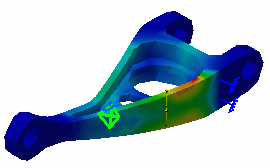

-
Click Animate
 .
.If only one image is activated in the current analysis case, this image is selected by default.
If you want to animate several activated images, multi-select the activated images, right-click the selection, and click Animate.The Animation dialog box appears and images are animated with default animation parameters.
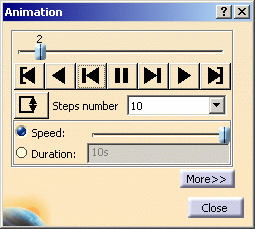
To learn more about this dialog box, see More About the Animation Dialog Box.
-
Click Pause
 .
.The animation is interrupted.
You access any point of the simulation at random.
-
You can now change the animation parameters to the desired values.
-
Click Play forward
 .
. -
Click Close in the Animation dialog box.

More About the Animation Dialog Box
- Slider: lets you manually select the desired step.
- Play:
-
 :
Jump to Start
:
Jump to Start -
 :
Play Backward
:
Play Backward -
 :
Steps Backward
:
Steps Backward -
:
Pause
-
 :
Steps Forward
:
Steps Forward -
:
Play Forward
-
 :
Jump to End
:
Jump to End
-
- Change loop mode:
-
 :
plays once in one shot
:
plays once in one shot -
 :
repeats play non stop
:
repeats play non stop -
 :
repeats play and reverse non stop
:
repeats play and reverse non stop
-
- Steps number: makes the animation more or less
fluent.
For a smooth animation, select 20 as the Steps number value, and click the Repeat play and reverse non stop
button.
For smaller models or models with large deformations, select 50. - Speed: lets you manually define the desired speed.
- Duration: lets you set the duration of a full
animation cycle. For time occurrences, each frame is displayed.

Consider four states calculated by the simulation with the following time for each state: 0s, 30s, 80s and 100s. If the animation speed is set such as the display of the full animation takes 10s, the first frame is displayed for 3s, the second frame is displayed for 5s and the third one is displayed for 2s.
More Button
The More button expands the Animation dialog box.
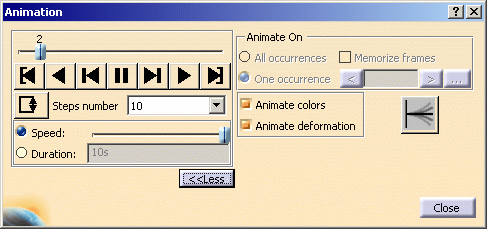
The options available in this part of the dialog box depend on the solution type (mono-occurrence or multi-occurrence).
Mono-occurrence solutions
By default, you can access the following options:
- Animate colors: animate the color values of the activated image.
- Animate deformation: animate the deformation of the activated image.
-
 :
use a half cycle animation (default value). In a half cycle,
the animation coefficient varies from 0 to 1.
:
use a half cycle animation (default value). In a half cycle,
the animation coefficient varies from 0 to 1. -
 :
use a full cycle animation. In a full cycle, the animation
coefficient varies from -1 to 1.
:
use a full cycle animation. In a full cycle, the animation
coefficient varies from -1 to 1.
Multi-occurrence solutions
-
All occurrences: animate all the
occurrences of the solution.
-
When activated, this option allows you to
choose whether you want to memorize frames:

The frame animation will be speed driven but memory consuming. If you do not select the Memorize frames option, the frame animation will need less memory but will be slower.
Because the Memorize frames option is memory consuming, this option is deactivated by default each time you open this dialog box.
-
When activated, this option allows you to
choose whether you want to memorize frames:
-
One occurrence: animate the
selected occurrences of the solution.

-
 :
this button lets you select the previous occurrence.
:
this button lets you select the previous occurrence. -
 :
this button lets you select the next occurrence.
:
this button lets you select the next occurrence. -
 :
this button lets you select the desired occurrence using
the Frequencies dialog box.
:
this button lets you select the desired occurrence using
the Frequencies dialog box.
When clicking this button, the Frequencies dialog box appears.
Multi-selection is not available in the Frequencies dialog box. - Animate colors: animate the color values of the activated image.
- Animate deformation: animate the deformation of the activated image.
-
:
use a half cycle animation (default value).
- For real values, the animation coefficient varies from 0 to 1.
- For complex values, the animated values are computed using the following formula:

where:
- Ai is the complex modulus.
-
 is the calibration angle computed for the maximum
value.
is the calibration angle computed for the maximum
value. -
 is the complex phase.
 -
 is the animation angle given by
 where n is the number of steps, and t is the current
step.
where n is the number of steps, and t is the current
step.
When t varies from 0 to n, the animation angle varies from 0 to .
.
-
:
use a full cycle animation.
- For real values, the animation coefficient varies from -1 to 1.
- For complex values, the animated values are computed using
the following formula:
where:
- Ai is the complex modulus.
-
is the calibration angle computed for the
maximum value.
-
is the complex phase.
-
is the animation angle given by
 where n is the number of steps, and t is the
current step.
where n is the number of steps, and t is the
current step.
When t varies from 0 to n, the animation angle varies from -
to
.
-
|
|
|
