
This task explains how to add a macro as a command in a toolbar.

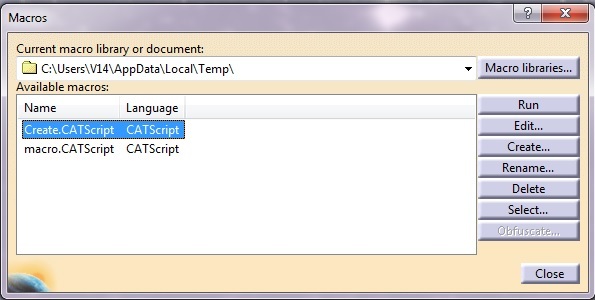
- Select the Tools->Macro->Macros... command to display
the Macros dialog box, and make sure that the directory path is added in 'Current
Macro library or documents' section.
All macros under this directory are listed in 'Available macros' section.
Then click 'Close'
- Select Tools->Customize , then the 'Commands' tab,
and Macros. Select the 'Macros' under 'Categories'
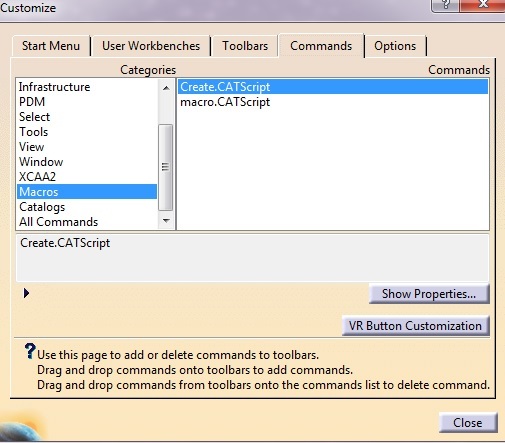
- In Customize window select 'Show Properties'
The default icon
 is used to show Icon.
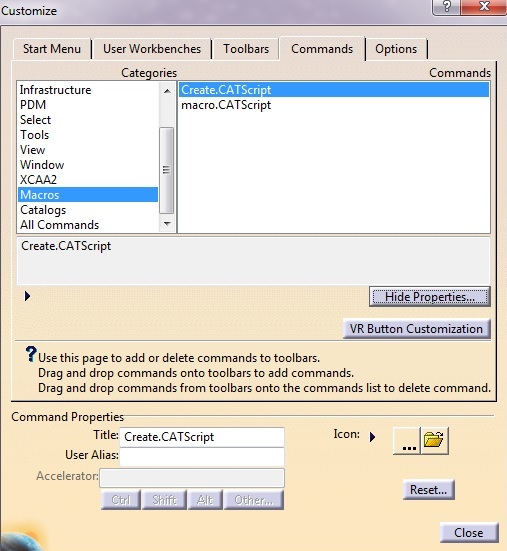
- To select another icon than the default one,click on

- Select the appropriate icon from 'Icon Browser'
- You can also use the local icon using

