
This macro shows you how to use the CD5 automation objects to perform Open operations from ENOVIA V6 in CATIA V5.
It connects to ENOVIA V6, and performs a Partial Open operation on a Root Assembly in "LatestVersion" Expand Mode.

CAACD5UseCase1 is launched in CATIA [1]. No open document is needed.
Prerequisites:
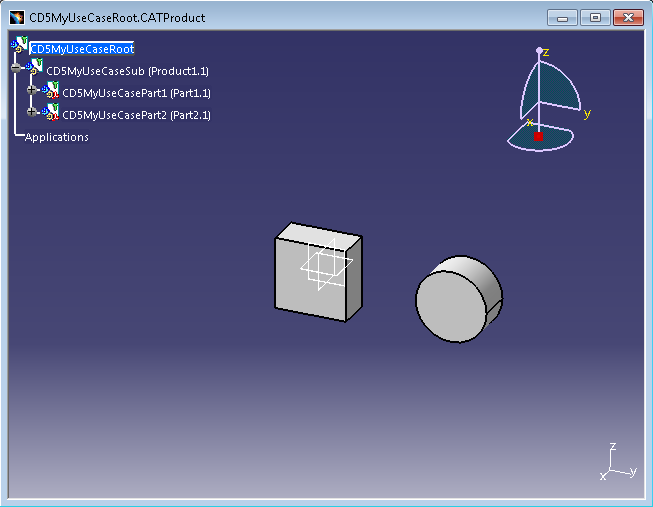
The following CATIA V5 Assembly is saved in ENOVIA V6 as revision A.
CD5MyUseCaseRoot
CD5MyUseCaseSub
CD5MyUseCasePart1
CD5MyUseCasePart2
In Revision B of CD5MyUseCaseSub, both parts got new colors and CD5MyUseCasePart2 3D location has been modified.
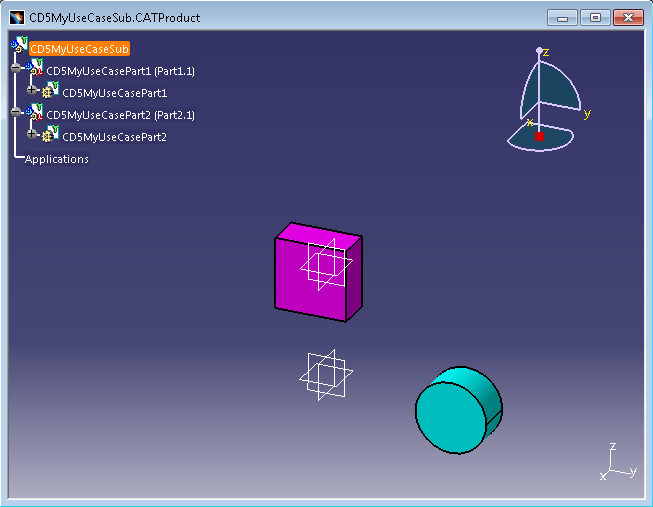
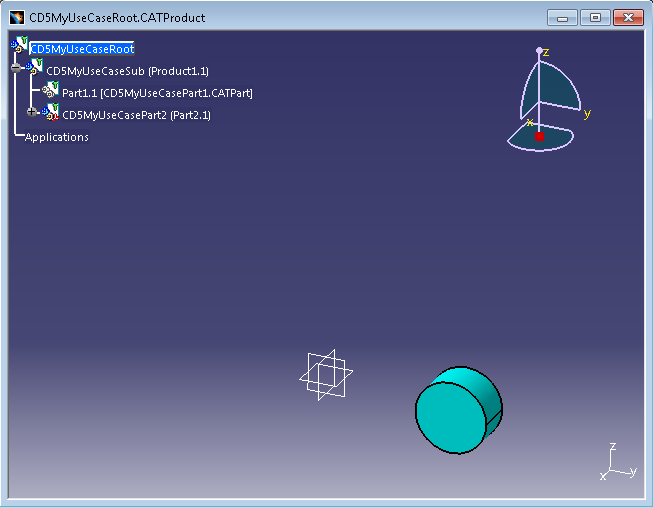
We want to open CD5MyUseCaseRoot of Revision A with CD5MyUseCaseSub and CD5MyUseCasePart2 by pointing their latest versions.
CAACD5UseCase1.CATScript is located in the CAAScdCD5UseCases module. Execute macro (Windows only).

CAACD5UseCase1 includes 8 steps:
- Retrieving CD5Engine object
- Connect to ENOVIA V6
- Set Partial Open Expand Mode
- Create ENOVIA V6 Identifiers for the objects to include in Partial Open
- Get Root Structure
- Include Objects for Partial Open
- Perform actual Partial Open operation on the Structure
- Disconnect from ENOVIA V6
Retrieving CD5Engine object
  ...
    ' Get CD5Engine
    Dim CD5Engine As CD5Engine
    Set CD5Engine = CATIA.GetItem("CD5Engine")
  ...
|
The entry point of the ENOVIA V6 Integration is the "ENOVIA V6 Integration Engine".
This object is retrieved using the GetItem method of CATIA object.
Connect to ENOVIA V6
  ...
    ' Connect to ENOVIA V6 (if not already connected)
    Dim IsAlreadyConnected As Boolean
    IsAlreadyConnected = CD5Engine.IsConnected
    If ( Not IsAlreadyConnected ) Then
        ' Connect with login, password, security context
        CD5Engine.Connect "Test Everything","",""
    End If
  ...
|
ENOVIA V6 Integration supports the connection without specifying a security context. In this case the default one is used.
Here we first check if CATIA is already connected to ENOVIA V6. If this is not the case then we perform the connection.
Set Partial Open Expand Mode
  ...
    ' Set Expand Mode of Partial Open to Latest Version
    CD5Engine.ExpandMode = "LatestVersion"
  ...
|
We want to open the Structure by referring the latest versions of the pointed objects.
Create ENOVIA V6 Identifiers for the objects to include in Partial Open
  ...
    ' Create IDs of Root Product, Sub Product and one Part
    Dim RootID, SubID, Part2ID As CD5ID
    Set RootID = CD5Engine.GetIDFromTNRV("CATProduct", "CD5MyUseCaseRoot", "A", "0")
    Set SubID = CD5Engine.GetIDFromTNR("CATProduct", "CD5MyUseCaseSub", "B")
    Set Part2ID = CD5Engine.GetIDFromTNRV("CATPart", "CD5MyUseCasePart2", "B", "0")
  ...
|
Here we create the identifiers of the objects we want to include in the final Partial Open operation.
Note that first and third IDs are created as Minor Objects, the second one as Major Object (no version).
Get Root Structure
  ...
    ' Get Structure of Root Product thanks to its ID
    Dim myStructure As CD5Structure
    Set myStructure = CD5Engine.GetStructure(RootID)
  ...
|
A Structure is created from the root ID and will be used to specify the data included in the Partial Open operation.
Include Objects for Partial Open
  ...
    ' Include the Sub Product and the Part for Partial Open
    ' NB: all intermediate nodes are required (including Part2ID only is not enough)
    myStructure.Include(SubID)
    myStructure.Include(Part2ID)
  ...
|
This means we want to open the Root Product by including the objects designed by the previously created IDs.
Perform actual Partial Open operation on the Structure
  ...
    ' Call the Partial Open on the Structure and display the name of the obtained root document
    Dim MyDoc As Document
    Set MyDoc = CD5Engine.PartialOpen(myStructure)
    MsgBox MyDoc.Name
  ...
|
Here we perform the Partial Open operation and get the obtained Root Document to display its name.
After clicking OK in the MsgBox displaying the document name, the result is as follows:
Disconnect from ENOVIA V6
  ...
    ' Disconnect from ENOVIA V6 in case we had to connect at the beginning of the script
    If (Not IsAlreadyConnected) Then
        CD5Engine.Disconnect
    End If
  ...
|
Here we disconnect from ENOVIA V6 (but only in case we had to connect at the beginning of the macro).
End of the macro.
